Free
For small teams getting started.
$0forever
Free foreverUp to 10 employees
What's included
- Clock in/out (web + Slack)
- Break tracking (auto-deducted)
- Attendance + leave management
- Weekly email reports
- Email support
Every feature. Every plan. The exact path from sign-up to your first payroll run. Read it end to end on a slow afternoon, or jump by chapter when you need it. We refresh this guide every time the product changes.
Chapter 01
Tickin replaces the spreadsheets, the email threads, and the three tools your team has been gluing together. Time, leaves, payroll, overtime, shifts, and reports in one workspace. Accessible from the web, from Slack, and from the optional Desktop App.
New to Tickin? Watch a 30-second overview to see it in action, then dive into the chapters below.
Clock in from the web, Slack, or desktop. Pause for breaks with one Slack command. Idle detection on the Desktop App.
Custom leave quotas per type, balances tracked from approved requests. Admin approval on every plan; two-stage team-lead → admin approvals for leave and attendance corrections, plus overtime detection, on Growth and Scale.
Pro-rated salary and overtime calculated automatically. PDF slips per locale.
Weekly work schedules per employee or department. Set working hours and active days.
Weekly email time summaries on every plan; monthly summaries on Growth. Attendance and leave data in the admin portal.
Employee, integration, and tax changes recorded with actor, timestamp, and before/after. Available on Growth.
Chapter 02
Most teams are fully onboarded in an afternoon. No implementation consultants, no setup calls.
Go to tickin.pro/signup. Continue with Google or use your work email. Pick a workspace name and a slug; your workspace lives at your-slug.tickin.pro. The slug — the your-slug part — uses lowercase letters, numbers, and hyphens; dots aren't allowed (spaces and dots are turned into hyphens automatically), because the slug is a single web address.
From Workspace settings, pick the country you operate in. Tickin auto-fills the matching currency and time zone, you can override either one. The time zone is what every scheduled job (the daily leave report, weekly and monthly summaries, payslips) and all "today" calculations run on, so set it to where your team actually is. Multi-zone countries (US, Australia, etc.) default to a representative zone; use the time-zone picker to choose your exact one. Tickin also localizes payroll, shifts and payslips around these values.
Open People → Invite. Add emails individually or paste a CSV. Each invite carries the role you assigned: Admin, Team Lead, or Employee.
Under Integrations → Slack, click Add to Slack. Once connected, employees can clock in, request leave, and record or cap their extra time without leaving Slack.
You start on the Free plan — free forever for up to 10 employees, with no card. Upgrade to Starter, Growth or Scale any time from Workspace → Billing.
Pro tip. Onboard one team first (say, five people) before rolling out company-wide. Use that team to validate your leave policies and shift templates, then scale.
Chapter 03
A workspace is your company's private home in Tickin. People, policies, payroll, and history all live inside it.
Drives payroll, payslips, and the symbols shown everywhere in the product.
Pick from 17 country profiles to apply local tax brackets and payroll rules. Brackets stay editable from Money → Tax once loaded. If your country isn't one of the 17, no brackets are loaded and income tax is calculated as 0% until you add your own in Money → Tax — the Tax page warns you while that is the case.
The departments people can be assigned to, in Settings → Departments. Your workspace starts with a standard set; + adds one of your own and − removes one, each shown with how many people are in it. Departments drive the employee directory, reports, shift scopes and who reviews attendance corrections. Removing one moves everybody in it to General — see Departments for exactly what that does.
Daily working hours (default 9), the days of the week your team works (any combination, default Mon to Fri, e.g. Sun to Thu), an optional override for the monthly required total, and the day your weekly digest email goes out (default Monday). Working days and public holidays drive the overtime trigger, the monthly summary, leave-day counting, and which days the daily report posts.
Annual, sick, casual, unpaid, parental and any type you add yourself, on the Leave → Leave quotas screen. Set each annual quota, turn a type off when your team does not use it, and + adds one of your own. Turning a type off hides it from new requests without touching leave already taken — see Leave types.
Define earnings and deductions beyond basic pay. Choose fixed amounts or percentages of basic, gross, or CTC, with optional caps.
Connect your Slack workspace for clock-in commands, OT confirmations, and leave notifications.
The admin who receives billing emails, dunning notices, and payment reminders.
Connect your own SMTP so invites, payslips, and reports go out from your domain.
A first-run setup checklist on the admin dashboard tracks which of these you've completed and links straight to the right page for each.
Chapter 04
Each role sees what they need and nothing more. Promote or demote any time from the People page.
| Capability | Admin | Team Lead | Employee |
|---|---|---|---|
| Edit company settings & policies | ✓ | — | — |
| Manage billing & plan | ✓ | — | — |
| Invite or remove people | ✓ | — | — |
| Edit salaries | ✓ | — | — |
| Approve leave requests | ✓ (any) | ✓ (their team) | — |
| Approve overtime (month-end) | ✓ | — | — |
| Adjust time entries | ✓ (any) | ✓ (their team) | Request only |
| Clock in, request leave, confirm OT | ✓ | ✓ | ✓ |
| View own payslip | ✓ | ✓ | ✓ |
| View team-wide reports | ✓ (company) | ✓ (their team) | — |
| Start & host video meetings (Tickin Meet add-on) | ✓ | ✓ | ✓ |
| See every meeting & attendance, workspace-wide | ✓ | — (own only) | — (own only) |
Chapter 05
Four plans, two optional add-ons, two billing cycles. All amounts in USD. Invoices and tax handled for you.
For small teams getting started.
What's included
Affordable per-seat plan for teams getting set up.
What's included
For growing teams that need real reporting.
Everything in Starter, plus
For teams that coordinate work, not just clock in.
Everything in Growth, plus
The Desktop App is optional on every paid plan. It runs on macOS, Windows, and Linux, captures activity-aware time entries, and syncs to your workspace automatically. It is also what unlocks GPS attendance verification for your workspace — office geofencing with clock-ins checked against your location. Pricing is the same on every plan, and follows your billing cycle: the 20% annual discount applies to add-ons too.
| Plan | Desktop App pricing | How it's added |
|---|---|---|
| Starter | $3 / employee / month | Toggle on in Billing. Applies to your seat count. |
| Growth | $3 / employee / month | Toggle on in Billing. Applies to your seat count. |
| Scale | $3 / employee / month | Toggle on in Billing. Applies to your seat count. |
Tickin Meet brings built-in video meetings to your workspace: instant and scheduled calls with a waiting room, host controls and host transfer, screen sharing, chat, and automatic attendance, with no third-party tools. Unlike the Desktop App, it is a flat charge per workspace (not per seat), and it is available on any paid plan. See the full Tickin Meet chapter for how it works.
| Tickin Meet pricing | Billing | How it's added |
|---|---|---|
| $20 / workspace / month $192 / workspace / year | Flat — the same price regardless of seat count. Follows your plan's billing cycle: annual workspaces are billed $192/year (20% off). | Toggle on in Billing. Requires an active paid subscription first. |
Meet is not affected by your seat count. Whether your workspace has 5 people or 500, Tickin Meet stays $20 / workspace / month ($192 / year on annual billing). It is a workspace add-on, independent of purchased seats and the Desktop App. The Free plan cannot add Tickin Meet — it needs a paid subscription first.
Switch billing cycle from Workspace → Billing. Annual prepays 12 months and applies a 20% discount to your base plan. Add-ons follow the same cycle and the same 20% annual discount.
No seat minimum. Paid plans bill per seat with no minimum and no employee cap — from a single seat up. Starter is $2, Growth is $3, and Scale is $6 per employee per month. Your subscription grows automatically as you add people; a removed person's seat stays available until you reduce it (see Purchased seats, active employees, available seats).
Every workspace starts on the Free plan — free forever for up to 10 employees, with no credit card. Upgrade to Starter, Growth or Scale any time from billing when your team grows, and nothing pauses by surprise.
Chapter 06
Everything you'd otherwise need a support ticket for is a button in your dashboard. Change plan, toggle the Desktop App, see what you'll be charged, before you confirm.
Open Workspace → Billing. Only admins see this page. From here you can:
When you change plans mid-cycle, Tickin shows you the exact prorated charge or credit before you confirm. The new rate applies immediately and your next renewal moves to the new plan. Add-ons stay attached.
You get an 8-day grace period. We email and Slack-DM the workspace contact on day 0, day 2, and day 5 with a one-click link to update the card. If the card still hasn't cleared by day 8, the workspace pauses. Your data stays safe; only write access is locked until billing is current. Reactivation is instant once payment goes through.
Auto-renewal is on by default. Turn it off from Billing to let your subscription expire at the end of the current cycle. You'll still have full access until then. Turn it back on any time to keep going.
On per-seat plans your subscription has a number of purchased seats — the quantity Polar bills each cycle. Your Billing page shows three numbers:
| Number | What it means |
|---|---|
| Purchased seats | The seats your subscription is billed for. This is what Polar charges. |
| Active employees | Your current, non-offboarded team members. Purchased seats can never be fewer than this. |
| Available seats | Purchased minus active — seats you're paying for but not yet using. Zero unless you've removed or deactivated people. |
When you add or reactivate an employee and there are no available seats left, Tickin expands your subscription automatically — the action is never blocked:
Employee is created immediately → your subscription expands to cover the new headcount → Polar prorates the added seat for the rest of the current cycle → if the Desktop App add-on is on, its licenses increase to match → the change is recorded in your billing activity, and you see a note explaining the expansion.
You are only ever charged for what you use going up, prorated to the day. There is no seat minimum and no employee cap.
Seats are never reduced automatically. When you remove or deactivate someone, their seat becomes an available seat — you keep it (and keep paying for it) until you choose to reduce. This means you're never surprised by a mid-cycle change to what you can do.
To reclaim spare seats, open Workspace → Billing and click Reduce seats. Pick a new number — you can go as low as your active employee count, but never below it. The reduction is scheduled for your next renewal: you keep your current seats (and no refund is issued) until the period ends, then the lower count takes effect. A pending reduction shows on the Billing page until then, and you can cancel it any time to stay at your current seats.
To reduce below your current headcount, deactivate or remove those employees first. Tickin won't let purchased seats drop under your active team.
If the Desktop App add-on is on, your Desktop licenses always equal your purchased seats — there is no separate Desktop quantity to manage. When seats expand, Desktop licenses increase with them; when a scheduled seat reduction takes effect at renewal, Desktop licenses step down to match. Tickin Meet is different: it stays a flat workspace charge and is never affected by your seat count.
Your Billing page keeps a Recent billing activity feed — a durable audit trail of every seat change, independent of Polar's invoices. Each entry shows the change (for example 50 → 51 seats), who or what triggered it, the reason, the billing effect, and any Desktop sync. You'll see entries for:
The same events are written to your workspace audit log, with actor, timestamp, and before/after values.
From Billing, Open billing portal takes you to a secure, pre-authenticated portal where you can update your payment method, download invoices, review charges, and manage or cancel your subscription. Changes there sync back to your workspace automatically.
From Billing, click Cancel subscription. You retain full access until the end of the current billing period. After that the workspace becomes read-only; your data is retained for 60 days (and stays exportable) before removal.
Chapter 07
A reference tour. Skim by heading, or read end to end on a slow afternoon.
Employees clock in from the web, from Slack with /tickin start, or from the Desktop App. Breaks are toggled with /tickin break, which pauses and resumes the work timer; the Desktop App also captures idle periods automatically and deducts them from worked time. Net worked time is gross hours minus break time, end of story. Admins (and team leads, on Growth and Scale) can adjust entries with a reason; employees submit correction requests for their approver to action.
In Settings → Work schedule you set your workspace's office hours — a start and end time such as 09:00 AM – 06:00 PM. These are your expected attendance schedule: they drive lateness and show on each employee's My day view. Separately, daily working hours is the payable figure every business calculation uses — overtime, monthly required hours, payroll, and reports all read it, never the office window. By default daily hours track the office span (09:00–18:00 → 9), but you can set them manually, for example a 09:00–18:00 office with an 8-hour paid day to account for an unpaid lunch. Once you set daily hours by hand, changing office hours never overwrites them until you choose Reset to Auto. Monthly required hours keep working exactly as before (daily hours × working days, or a manual override).
Turn on a grace period to allow a short late window (5 to 60 minutes). If someone clocks in after the start time plus the grace window — evaluated in your workspace timezone, only on your configured working days, and never on a public holiday — Tickin posts a late-arrival notice to your managers' channel on Slack or Microsoft Teams (whichever you've connected and ticked under “Notify managers via”). Each employee triggers at most one alert per working day, so attendance edits and repeat clock-ins never spam. The grace period is off by default, so nothing changes until you enable it.
For teams that need clock-ins to happen on-site, admins can require GPS verification. GPS is part of the Desktop App add-on and is available on any paid plan; it is not included with a plan on its own. In Integrations → GPS-Based Attendance Verification, turn it on and enter your office address, that's the only input. Tickin geocodes the address and draws a geofence (a 250 m radius by default) around it. From then on, when an employee clocks in from the web portal or Desktop App, their device location is checked against that geofence: inside the radius clocks in normally, outside is blocked, and if the location can't be read the entry is marked for review rather than refused, so nobody is ever stranded. Every clock event is stamped Office, Off-site, or N/A in the attendance history for admins and team leads.
Because Slack and Microsoft Teams can't report a reliable device location, clock-in from chat is disabled while GPS verification is on; employees use the web portal or Desktop App instead (status, breaks, and everything else in chat keep working). Clocking out differs between the two: it still works from Slack, with the location recorded as unknown, while Teams blocks both directions. Turning GPS on therefore changes how your team clocks in — tell them before you enable it. The login screen also asks for location permission up front so verification is ready at clock-in.
The Desktop App add-on is what unlocks GPS for your workspace, but the app does not report location in the background. The Tickin window inside it is the web portal, so a location is asked for at clock-in exactly as it is in a browser. That also means installing the Desktop App does not make GPS clock-in work from Slack or Teams — chat still cannot supply a location.
Define leave types at the workspace level: annual, sick, casual, unpaid, parental. Each type has an annual quota, a flag for whether it requires approval, and a unique color in the calendar. Employees submit requests from the web portal. On Growth and Scale, team leads approve their team first and admins sign off; on Free and Starter, admins approve directly. Used days are tracked automatically from approved requests, and a daily Slack roll-up shows who's out today.
Tickin calculates salary, deductions, and overtime for you — every figure comes from one engine, so the preview, the payslip and the recorded payroll always agree. Running payroll is a deliberate step you take: pick a pay period that has ended: a month, or on Scale a week for weekly-paid employees (a period still in progress can't be run), preview every employee's figures line by line — including anyone who will be skipped because they have no base salary set — then run it. Afterwards you can notify your team by email that their payslip is ready.
Employees see their payslip in their own portal and can download it as a PDF in their locale, with full CJK font support for Japanese, Chinese, and Korean names. On the 3rd of each month Tickin also emails the previous month's payslip to every employee it has a payroll record for — so a month you have run goes out on its own, and a month nobody has run doesn't.
Overtime is detected automatically. Set a daily threshold per workspace (default: 9 hours, in Settings → Work schedule); anything worked beyond it counts, and on a public holiday or a non-working day every hour counts from the first minute. When someone clocks out past the threshold, Tickin asks whether to record the extra time or cap the day there — in the web dashboard, in Slack, and in Microsoft Teams.
At month end that detected overtime first absorbs any shortfall against the month's required hours. Only the genuine surplus that survives is put in front of an admin, on Attendance → Overtime → Approvals, and only what an admin approves is ever paid. That happens automatically on the 1st, and an admin can also press Recompute this month on the Monthly summary tab to rebuild the figures at any time — it refreshes what is waiting for review and approves nothing. To pay it, add a salary component and switch on Paid per approved overtime hour: either a fixed amount per overtime hour, or a percentage of basic, gross or CTC. The percentage is the hourly rate — 1% of a 50,000 salary pays 500 per overtime hour — and pay is that rate times the approved hours. Overtime is available on Growth and above.
For the full details on how overtime and monthly hours are calculated, see Overtime & salary calculation.
The daily threshold only applies on days work was expected. On a public holiday, or on any day outside your configured working days, the threshold is zero and every hour worked counts as overtime from the first minute — someone who puts in three hours on a Sunday earns three hours of overtime, not none. The overtime row is tagged so you can see at a glance why a short day produced a full day's overtime. Which days count is read from your Work schedule and your public holidays list, so it follows each workspace's own calendar rather than any fixed idea of a weekend.
On the 1st of every month, Tickin snapshots the previous month per employee and answers one question: of the overtime that was detected, how much simply made up a shortfall, and how much is genuinely extra? Only what is genuinely extra goes on to be approved.
Idle time is counted exactly once, when it is deducted from the day it happened. An earlier version also charged idle a second time against overtime at month end, which docked an employee twice for one absence; that step was removed in August 2026. Snapshots taken before then keep their original figures so past months still read as they did.
Admins see everyone, team leads see their own team, employees see themselves. The view sits next to the daily OT log on the Overtime page.
Monthly required hours are computed automatically from your Work schedule (daily hours × working days in the month, minus paid public holidays, minus each employee's approved leave). Admins can pin a custom monthly total if the auto value doesn't fit.
Every workspace starts with a standard set of departments and can change it from Settings → Departments. + adds one, − removes one, and each is listed with the number of people currently in it. A department you add appears immediately everywhere the department dropdown does — the employee form, portal invites, reports, the calendar, adjustments, shifts and the overtime screen.
The starting set is not purely generic. When the feature first reaches a workspace the list is built from the standard names plus whatever departments that workspace is already using, so nothing an existing team had is lost by the list becoming editable. After that the list is yours: a default you remove stays removed, and is not restored by later updates.
Removing a department never leaves anyone without one. Everybody in it moves to General, and the move covers both the employee record and the portal account, so the directory and that person’s approval routing stay in agreement. Any shift scoped to that department is repointed to General rather than left pointing at something that no longer exists. It happens as a single step: if any part of it fails, nothing changes.
Two things follow. General cannot be removed — it is where every removal lands, so the control is not offered on it. And past records keep the old name: an activity-log entry or an attendance correction that recorded the previous department still shows it, because it is a record of what was true at the time rather than a description of the present.
Adding and removing are admin-only. Everyone can see the list, because the dropdown appears on screens employees use too.
Every workspace starts with the standard leave types — Annual, Sick, Casual, Work From Home, Unpaid, Public Holiday, Paternity and Maternity — and can change the list from Leave → Leave quotas. Each row shows its quota, an on/off switch, and how it is being used. + adds a type of your own: name it, give it a number of days, and it is available to request straight away.
Nothing changes for a workspace that does not touch these controls. When the feature reaches you, every leave type you already had stays exactly as it was — same quotas, same colours, all switched on. The list only changes when you change it.
Turning a type off is the everyday control, and it is deliberately gentler than deleting. The type stops appearing when people request leave, and it stops being renewed at the start of a new leave year. Everything already recorded stays exactly where it is: approved leave stays approved, past requests keep showing in history, and anyone who has already used that type this leave year keeps seeing their balance for it, marked read-only. That last part matters — without it, days somebody genuinely took would vanish from their balance and read as leave they never used. The balance clears itself when the leave year rolls over. Turning the type back on restores it exactly as it was.
Sick Leave cannot be turned off. It is the one type available to employees on probation or an internship, so switching it off would leave them with nothing they could request. The screen shows it as Always on rather than offering a switch that would be refused.
Removing is offered only where it is safe, and only for a type you added yourself. The standard types can be turned off but never deleted. A type of your own can be removed while nothing has used it; once anyone has requested it, been renewed on it, or been given a custom quota for it, the remove button is replaced by the usage count and the answer is to turn it off instead. This is not caution for its own sake: a leave type is written into every request and renewal that used it, and deleting it would leave those records pointing at something that no longer exists, with no way to undo it. Turning it off achieves what you wanted — nobody can request it any more — and keeps the record intact.
Types you add are available to permanent employees. Quotas, adding, turning on or off and removing are admin-only; employees simply see the types that are switched on.
On the Growth plan, design weekly work schedules per employee or per department. Set working hours, active days, and minimum hours from the Shifts page. Employees and team leads see their week at a glance from the home screen. Once shifts are on, every employee needs a shift, their own or their department’s: anyone without one is stopped at clock-in and told to ask an admin to assign one.
Tickin delegates without losing oversight. On Growth and Scale, team leads handle attendance corrections and leave for their own team only; admins see everything across the workspace. The team lead role is a clean middle layer between admin and employee.
Slack is a first-class surface, not a bolt-on. Clock in, take breaks, check status, request leave, and confirm overtime, all without leaving the channel where your team already lives. Leave and WFH requests can be filed right in Slack with /tickin leave (Full-Day; use the web dashboard for a half day), and approvers act on them with Approve / Decline buttons in Slack or in the web portal, whichever they prefer.
Weekly and monthly time-entry summaries land in your inbox: sessions and hours per employee. Overtime, attendance, leaves, and a daily roll-up are available in the admin portal, filterable by employee, department, and date range.
Switch plans, add or drop the Desktop App, toggle auto-renewal, update your card, download invoices, all from Billing. Every change shows its prorated impact before you confirm.
Employee, integration, and tax changes are recorded append-only with actor, timestamp, and before/after values. Key day-to-day events (clock-ins, leave approvals, OT decisions) are recorded separately in the activity log. Both are filterable and useful for compliance and forensics.
The best HR software is the one your team doesn't notice. It just works, quietly, while the people you hired get on with the work you hired them for.The Tickin operating principle
Reference
Exactly how an overtime hour is identified, what a month is expected to contain, why some overtime is absorbed rather than paid, and how an approved hour turns into money.
Every workspace sets a daily threshold in Settings → Work schedule — the daily working hours figure, 9 hours by default. On a day work was expected, overtime is the worked time above that threshold. Worked time here is net: breaks are removed, and if the Desktop App recorded idle periods those are removed too.
On a day work was not expected the threshold is zero, so every hour is overtime from the first minute. That covers any day outside your configured working days, and any public holiday — paid or unpaid. Someone who puts in three hours on a Sunday has three hours of overtime, not none.
A forgotten clock-out should not become a hundred hours of overtime. Before the threshold is applied, a day's worked time is capped at your office span plus the maximum daily overtime allowance (3 hours by default), and never more than 24 hours. With a 09:00–18:00 office and the default allowance, the ceiling is 12 hours: a session recorded as running for four days contributes 12 hours to its first day and nothing to the days after it.
Separately, sessions longer than your maximum session hours setting are flagged for review, with the raw hours, the hours actually counted, and the difference. Nothing is silently rewritten: the attendance record keeps what was recorded, and a human decides what to do about it.
Monthly required hours are computed per employee, from the calendar rather than a fixed number:
So the figure differs between two people in the same month: someone who took a day of approved leave is asked for one day less. Admins who need a flat number instead can pin one in Settings → Work schedule as Monthly required hours (override); leave and holidays are still deducted from it.
Overtime is not paid simply because a long day happened. A month is looked at whole. If someone worked extra on Tuesday but finished the month below what the month asked for, that extra time made up a shortfall — it did not add to it.
So the detected overtime is spent against the shortfall first, and only what survives is a genuine surplus:
Someone 4 hours short of the month with 6 hours of detected overtime has 4 hours absorbed and 2 hours of surplus. Someone 200 hours short has all of it absorbed and no surplus at all. This is the arithmetic behind an employee having recorded overtime and still being paid none.
Idle time is counted exactly once, deducted from the day it happened, and is not charged a second time here.
Overtime is decided by the month, not the day. A single day cannot be known to be surplus until the month closes and the shortfall is filled, so there is nothing meaningful to approve while the month is still running.
On the 1st of each month Tickin reconciles the month just ended and, for each employee whose surplus is above zero, raises one item for decision. Admins act on it at Attendance → Overtime → Approvals, with Approve or Deny and an optional note. Overtime approval is an admin action; team leads see their team's overtime but do not decide it. The daily rows on the OT Report tab remain as evidence — they show what was detected and why, and are not themselves approved.
Approving stamps the figure that was approved. If a day inside an already-approved month is edited afterwards, pay does not quietly move: the month is flagged as stale and comes back for a fresh decision, holding at what was approved until someone decides again.
Waiting for the 1st is not always practical — a leave request approved late, a holiday added after the fact, or simply wanting to see where a month stands before it ends. Admins can press Recompute this month on Attendance → Overtime → Monthly summary, for whichever month is selected.
It runs the same reconciliation the scheduled job runs — the same code, not a separate calculation — so what it surfaces is exactly what the 1st would have surfaced. It rebuilds the month's figures and raises an approval item for anyone whose surplus is above zero.
It decides nothing. Recomputing never approves, never denies and never pays: anything it surfaces still waits for a person on the Approvals tab. And it cannot move money already agreed — if the month was already approved, a recompute that produces a different figure flags the month stale and leaves the approved figure, and the pay following it, exactly where they were.
Overtime pay is opt-in. Nothing is paid for overtime until a workspace creates a salary component for it, in Money → Components, with the toggle Paid per approved overtime hour switched on. That component gives the rate for one overtime hour, and there are four ways to express it:
For the percentage methods the percentage applies directly to the salary: it is the hourly rate, not a multiplier of one. On a 50,000 basic, 1% is 500 per overtime hour and 2% is 1,000. Because the figure is a rate per hour rather than a share of a month, the usual values are small — a percentage above 100 would mean a whole month's salary for a single hour, so the field accepts 0–100.
Overtime pay is then the rate times the approved surplus hours:
The overtime line appears on the payslip as its own earning inside gross, so income tax is calculated on it like any other pay. A component can also carry a maximum amount, which caps what overtime pays in a month however many hours were approved. Rates can be set once for the workspace and overridden for an individual employee.
A full month pays the full monthly salary, whether that month had 28, 30 or 31 days. February does not pay less than March, and a 31-day month does not pay more. A monthly salary is a monthly figure, not a daily rate multiplied by however many days the calendar happened to hold.
Where a partial month is calculated, it is prorated on a 30-day basis, so the same number of days worked produces the same figure in any month of the year.
Chapter 08
Plan the work, not just the hours. Group tasks into projects, move them across a simple board, and let the time people log against a task flow into the same approvals you already trust.
The Projects module sits alongside time and leave as a place to organise actual work. A project is a container — a client engagement, a product, an internal initiative — with its own members and its own board of tasks. Each task is a card you can describe, assign, prioritise, schedule, break into sub-steps, attach files to, and discuss. When an assignee works on a task, they log time against it, and that time runs through a two-stage approval before it counts. Everyone reads the same board, so there's no separate status meeting to keep it honest.
Open Projects from the side navigation and click New project. Give it a name and an optional description, then add the people who'll work on it. Only the members you add can see the project and its board — it isn't visible workspace-wide — so a project is also a quiet way to scope who sees what. Add or remove members at any time from the project's Members panel; a removed member loses access immediately but any time they already logged stays on the record.
Admins and team leads create projects and manage their members. An employee added to a project sees its board, works the tasks assigned to them, and comments — but doesn't create or restructure the project itself.
Every project opens on its board — three columns, To Do, In Progress, and Done, with each task shown as a card. Move work forward by dragging a card from one column to the next; the new status saves the moment you drop it, and everyone watching the board sees the change. A card shows its title, priority, due date, assignee avatars, and labels at a glance, so the state of the whole project reads in a single scan.
Only a task's assignee can move it between columns. This keeps the board truthful — progress is reported by the person doing the work, not by someone reshuffling cards from the outside. Managers who need to recategorise a task can do it by editing the task itself.
Click Add task at the top of any column, or New task from the project header. A task carries:
Tasks are created and edited by admins and team leads. You can fill in as much or as little as you like up front and refine the rest later — every field is editable from the task view.
As a project grows, use the controls above the board to narrow what's shown. Type in the search box to match task titles and descriptions, or filter by label, assignee, or priority. Filters combine — for example, High-priority tasks assigned to one person carrying the blocked label — and the columns redraw instantly to show only the matching cards. Clear the filters to return to the full board.
Click any card to open the full task view — a focused page with everything about that task in one place:
The complete write-up of the work, plus its priority, due date, assignees, and labels — all editable in place by a manager.
Break a task into sub-steps and tick them off as you go. A progress bar shows how many are done, so a half-finished task reads at a glance.
Attach files — mockups, specs, screenshots — directly to the task so the reference material lives with the work, not in a chat thread.
Discuss the task in a threaded conversation. Type @ to mention a teammate and pull them in; they're notified right away.
The checklist turns a big task into a sequence of small, checkable steps and rolls them into a single progress indicator. Comments with @mentions keep the discussion attached to the task rather than scattered across messages — anyone who can see the task can comment, and a mention or a reply on a task you're assigned to reaches you through your notifications.
The Projects module follows the same clear boundaries as the rest of Tickin:
| Action | Manager (admin / team lead) | Assignee | Other project member |
|---|---|---|---|
| Create & edit projects, manage members | ✓ | — | — |
| Create & edit tasks | ✓ | — | — |
| Move a task between columns | via editing | ✓ | — |
| Log time on a task | — | ✓ | — |
| Comment & @mention | ✓ | ✓ | ✓ |
In short: managers shape the work, the assignee reports progress and logs the hours, and anyone who can see a task can join the conversation.
When you work on a task you're assigned to, open it and log time in minutes — say, 90 minutes against "Build the export endpoint." Logged time doesn't count the moment you enter it; it enters a two-stage approval so the numbers that reach reports and payroll have been reviewed.
The person assigned to the task records the minutes they spent. The entry is created in a pending state and shows up for review.
The team lead who created the task reviews the entry and approves it. This first sign-off confirms the work and the time were as described.
After the team lead, a sys-admin gives the final approval, at which point the time is confirmed and flows into the dashboard and reports.
A sys-admin's own logged time is auto-approved — there's no one above them to sign off, so their entries skip the queue and count immediately.
The dashboard turns all those tasks and hours into a picture of where the work stands. It breaks the numbers down three ways — by project, by task, and by employee — so you can see which project is absorbing the most effort, which tasks are carrying the hours, and how each person's logged time is distributed.
It also hosts the approvals board: every pending time entry waiting on a first or final sign-off, in one queue, so team leads and sys-admins can clear reviews in a sitting rather than hunting task by task. Employees get their own History view — a running record of the time they've logged and where each entry stands (pending, approved, or sent back) — so everyone can see their own contribution without seeing everyone else's.
Projects plug into the same notification channels as the rest of Tickin, so you hear about the things that involve you without watching the board. Each of these lands in the in-app bell, and is also delivered as a direct message in Slack and Microsoft Teams where those integrations are connected:
The bell is always on. Slack and Microsoft Teams DMs only arrive when that integration is connected for your workspace — see the next chapters to set them up.
Chapter 09
Tickin treats Slack as a primary surface. Clock in, take a break, check your status, all without leaving the channel where your team already lives.
Tickin registers a single command, /tickin, with sub-keywords. Type /tickin help anytime to see the list. Short aliases are shown in parentheses.
| Command | What it does | Who can run it |
|---|---|---|
/tickin start | Start a time entry for the current shift. Announces in the attendance channel. | Any employee |
/tickin end | End the current time entry. Closes any open break automatically and posts the net worked time. | Any employee |
/tickin break (br) | Toggle a break. Run it once to pause the work timer, again to resume. Tickin tracks your current state. | Any employee |
/tickin attendance (att) | Private summary of today: clock-in time, hours worked, total break time, and whether a break is active. | Any employee |
/tickin overtime (ot) | Your overtime status for the current session. | Any employee |
/tickin balance (bal) | Your remaining leave balances, showing only the leave types you're eligible for. | Any employee |
/tickin leave | Opens a form (modal) to request Full-Day leave or WFH. Submits through the same engine as the web dashboard. | Any employee |
/tickin holidays (hol) | Upcoming public holidays on your workspace calendar. | Any employee |
/tickin help (?) | List every command and what it does. | Any employee |
start/end also accept the aliases clockin/clockout. Leave and WFH from Slack are Full-Day only; for a half day, use the web dashboard.
Breaks pause your work timer. Type /tickin break when you step away; type it again when you're back. Tickin tracks the state for you. Net worked time is always clock-out minus clock-in minus the sum of all break time for that session. Take as many breaks as you need; they all add up.
Daily and weekly summaries in your dashboard show three numbers side by side: gross hours, break hours, and net hours. Admins see the same breakdown for their team. Overtime detection uses net hours, so a long lunch never trips the daily threshold by accident.
How the math lands for one work session, side by side:
/tickin breakTwo breaks of 30 and 18 minutes total 48 minutes, which Tickin subtracts from the 9h 12m between clock-in and clock-out, leaving 8h 24m of net worked time. Half-day or seconds-level breaks are handled the same way — every break is summed and deducted.
Forgot to end a break before clocking out? Tickin closes it for you automatically and uses the elapsed time. Your timesheet stays clean either way.
The daily leave report is on by default. From Integrations → Daily leave report you can turn it off or pick the hour (0–23); it posts once that day, at that hour, in your workspace time zone (the one from Settings, see above), on working days only, to your Slack Leave channel — or the Default channel if you haven't set a Leave channel. Because the scheduler is aligned to the minute, the post lands right at the top of the hour you choose, in your workspace time zone (within about a minute), rather than drifting later in the hour. Want to see it immediately? Click Send test now on the same row — it fires the report straight away so you can confirm the format and that your channel is set, without waiting for the scheduled time.
Connecting Slack is a one-click Add to Slack flow. There are no tokens, signing secrets, or webhooks to copy, and no slash commands to register by hand. Tickin runs a single Slack app that serves every workspace; you authorize it once and choose where notifications post.
In the admin portal, go to Integrations → Slack and click Add to Slack.
Slack shows the access Tickin requests, posting messages, reading basic profile info to match employees by email, and running the /tickin command. Review and click Allow. Slack sends you back to Tickin, now connected. The workspace's access token is stored encrypted; nothing sensitive ever touches your browser.
Back in Integrations → Slack, set your channels. The Default channel is required for channel posts — clock-in/out and attendance announcements, holidays, and the daily leave report all post there. Until you pick one, a setup checklist flags "Default Channel required" and those channel messages simply aren't posted. The Leave and Holiday channels are optional (each falls back to the Default). Direct messages, such as overtime checks and leave approvals, go straight to the right person, so they work with no channel selected.
That's it. /tickin works for everyone in the workspace right away, and the interactive parts, the leave form, the Approve / Decline buttons, and the overtime buttons, are already wired. There is nothing else to switch on.
Each Slack workspace connects to exactly one Tickin account. If a workspace that's already linked elsewhere is connected to a new account, the previous link is released automatically, so a workspace is never shared across tenants.
When someone files a leave, WFH, or attendance-correction request, the approver gets a direct message from the Tickin app (not a channel post, so the buttons stay private) with Approve and Decline buttons. On Growth's two-stage flow the request goes to the team lead first; approving forwards it to an admin for final sign-off, and either decline ends it. The employee is notified on Slack the moment a decision is made, and every Slack approval is written to the audit log just like a decision made in the dashboard.
The buttons work as soon as Slack is connected, there is nothing to enable. If a request can't be actioned (for example it was already handled elsewhere), the button reply says so instead of failing silently.
Integration
Run attendance where your team already collaborates. On the Scale plan, your team clocks in and out, takes breaks, checks status, checks leave balances, requests time off, and views holidays inside Microsoft Teams — full command parity with Slack — and managers approve leave and attendance corrections without ever leaving Teams.
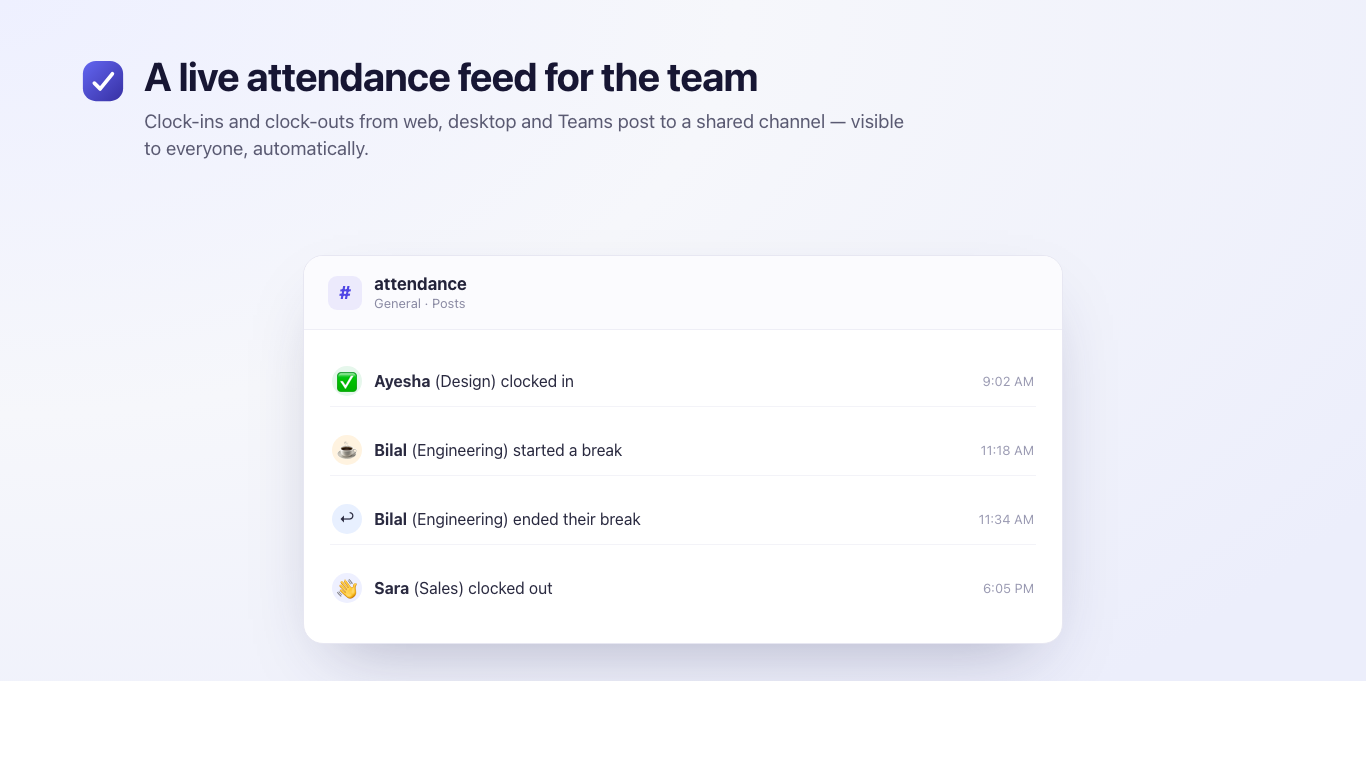
Each person gets a private chat with the Tickin bot for commands, and the team gets a shared channel that shows a live attendance feed:
| Where | What it's for | Who sees it |
|---|---|---|
| Private chat with Tickin | Your commands — tickin start, tickin end, tickin break, tickin attendance, tickin balance, tickin leave, tickin holidays. | Only you |
| A channel (e.g. #attendance) | A live, read-only feed of clock-ins and clock-outs. | The whole team |
Message the Tickin bot in your private chat — the same Tickin commands as Slack:
tickin break start / tickin break stop)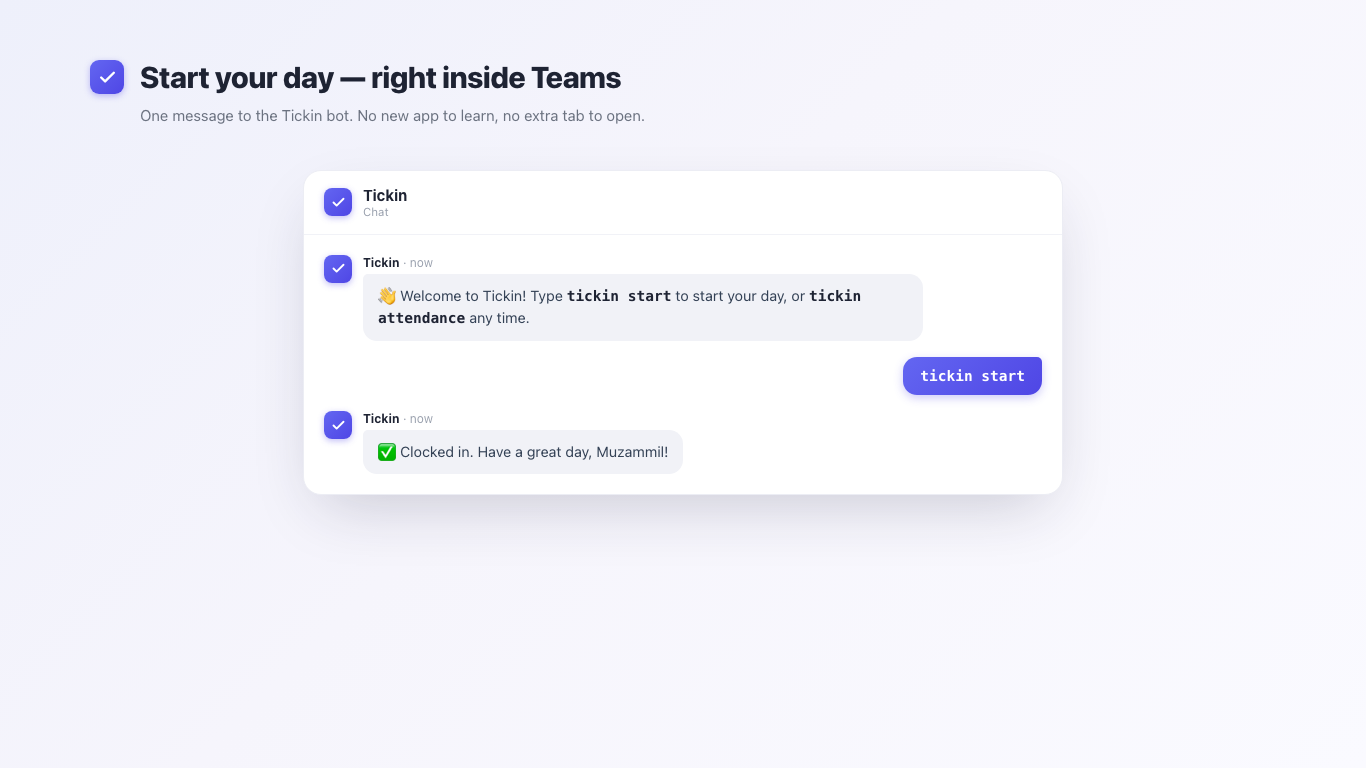
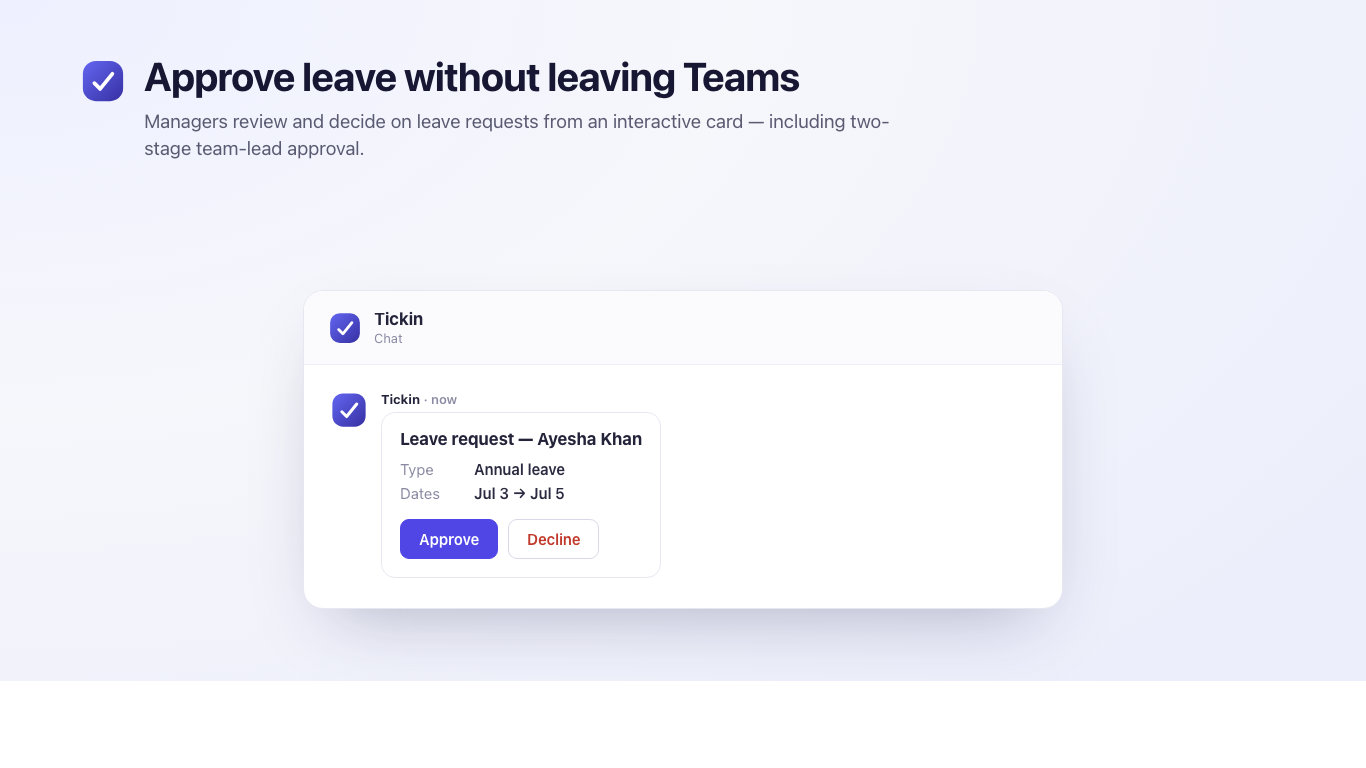
Employees are matched automatically by their work email. Managers receive interactive Approve / Decline cards for leave (including two-stage team-lead review on Growth and Scale), and employees get one-tap overtime prompts. It's one clock everywhere — a clock-in from Teams shows on the web dashboard and in reports, and the channel feed updates whether someone clocked in from Teams, the web, or the desktop app.
Microsoft Teams is a Scale-plan feature, and these steps are done once by a Workspace System Administrator. You install the Tickin app by uploading it to your organization in Teams (there is no public Teams Store listing yet), then link your workspace.
.zip)..zip. Approve the requested permissions if prompted.
If an admin has turned on Require Desktop App for Clock In (Admin → Desktop App), clocking in from Microsoft Teams follows the same rule as the web and Slack: the employee must have the Tickin Desktop app open and tracking first. If it isn't ready, the bot won't clock them in — it replies asking them to open the Desktop app (and, on macOS, grant the Accessibility permission and relaunch) before trying again. This keeps idle and activity tracking accurate no matter where someone clocks in from.
Microsoft Teams is a Scale-plan feature. Like Slack, it's a chat integration — a workspace uses one at a time, so enabling Teams turns Slack off. (Email/SMTP is separate and runs alongside either.)
Integration
One /tickin command turns Slack and Microsoft Teams into a full HR surface. It works identically on both platforms and adapts to who is asking: employees self-serve, managers run their team, and admins run the workspace. Slack renders these as Block Kit; Teams as Adaptive Cards.
Type /tickin on its own to open your role-aware home with quick-action buttons, or /tickin help for a role-based list of everything you can run. Everything below is enforced server-side against your authenticated Tickin role: employees only ever see their own data, team leads only their direct reports, and admins the whole workspace, and search is scoped the same way.
Most-used commands
/tickin start
/tickin end
/tickin break
/tickin leave
/tickin today
/tickin balance
/tickin team today
/tickin approvals
/tickin dashboard
Available to everyone. Your own information only.
| Command | What it does | Example output |
|---|---|---|
/tickin start / end | Clock in / clock out. | ✅ Clocked in. Have a great day! |
/tickin break | Toggle a break (pauses / resumes the work timer). | ☕ Break started — your work timer is paused. |
/tickin leave | Open a form to request leave; routes to the right approver. | Leave form (modal / card) |
/tickin balance | Your remaining, used, and pending leave by type. | Annual: 12 remaining · 8 used · 20 total |
/tickin today | Your attendance today: clock-in/out, worked, break, status, overtime. | Clock in 9:01 AM · Worked 7h 32m · On Time |
/tickin attendance | Live summary of your current session. | 🟢 Clocked in since 9:01 AM — 3h 20m so far |
/tickin me | Your read-only profile: department, manager, joining date, office hours, status. | Profile card |
/tickin schedule / shift | Office hours, working days, timezone, grace period; today's and tomorrow's shift. | Office hours 9–6 · Mon–Fri |
/tickin home | Personal dashboard: today, balance, upcoming leave, quick actions. | Home card |
/tickin upcoming | Your upcoming approved leave, remaining balance, and public holidays. | Upcoming card |
/tickin insights | Your last-30-day attendance trends (self view). | Attendance, avg arrival, avg hours |
/tickin report today|week|month | Your own attendance report for the period. | Report card |
/tickin report subscribe | Get a daily / weekly / monthly report delivered to your chat. | 🔔 Subscribed to weekly reports. |
Everything above, plus these for the people who report to you. A team lead can never see employees outside their team.
| Command | What it does | Scope |
|---|---|---|
/tickin dashboard | Team rollup: working, late, early, on break, on leave, not checked in, pending approvals, and a needs-attention list. | Your team |
/tickin team today / summary | Who is working, on break, late, on leave, or absent right now. | Your team |
/tickin team late / early | Today's late arrivals / early departures, with minutes exceeded. | Your team |
/tickin team online / breaks / leave | Who's clocked in, on break, or on leave today. | Your team |
/tickin emp balance|attendance|profile|today|list | Look up a report via a searchable picker (no IDs). | Your reports |
/tickin approvals | Pending leave with Approve / Reject / View Details buttons. | Your reports |
/tickin corrections | Pending attendance corrections with the same interactive buttons. | Your department |
/tickin search / directory | Find employees by name, code, email, department, or manager. | Your team |
/tickin summary / insights | Today's team summary; last-30-day team trends and frequent-lateness list. | Your team |
/tickin report today|week|month | Team attendance report for the period. | Your team |
/tickin notifications | Toggle which alert categories reach you. | You |
Everything a team lead can do, extended across the whole workspace, plus:
| Command | What it does | Scope |
|---|---|---|
/tickin workspace | Workspace summary: employees, departments, online now, late today, leaves today, pending requests, connected integrations, timezone, office hours, grace period, leave policies. | Whole workspace |
/tickin directory / search | Browse or search every employee, grouped by department. | Whole workspace |
/tickin report / report subscribe | Company-wide reports, on demand or scheduled. | Whole workspace |
/tickin dashboard / approvals / corrections | Workspace-wide dashboard and approval queues. | Whole workspace |
Leave requests and attendance corrections aren't just listed, they're actionable. Each pending item carries Approve, Reject, and View Details buttons (Block Kit in Slack, Adaptive Cards in Teams). Tapping one runs the same approval workflow and writes to the same audit log as the web app, so nothing in chat is a shortcut around your process. The message refreshes with the outcome.
Run /tickin report subscribe to receive a daily, weekly, or monthly attendance report as a direct message, scoped to your role: your own summary, your team, or the whole workspace. Delivery reuses the same scheduler as every other Tickin job and respects your notification preferences, so turning scheduled reports off stops delivery.
Run /tickin notifications to toggle categories, late arrivals, early departures, leave requests, attendance corrections, missing clock-outs, overtime, and scheduled reports, on or off. If you disable a category, Tickin stops sending you those chat messages. Alerts auto-route to whichever platform (Slack or Teams) your workspace has connected.
Slack and Teams are at parity. Every command and behaviour here is identical on both platforms; only the rendering differs. Slack is a one-click marketplace install (OAuth). Microsoft Teams is configured per tenant with your own Azure Bot and is available on the Scale plan.
Every command is checked on the server against your authenticated Tickin role, never trusted from the chat message. The rule is simple and consistent across search, lookups, dashboards, and reports:
| Role | Can see | Cannot see |
|---|---|---|
| Employee | Only their own attendance, leave, schedule, and profile. | Anyone else. |
| Team lead | Themselves and the people who report to them (via reports to); attendance corrections are scoped to their department. | Anyone outside their team, even in search results. |
| System admin | The whole workspace: every employee, company reports, and the workspace summary. | Nothing within their own workspace (tenant-isolated from others). |
At a glance, who can run what:
| Command | 👤 Employee | 👥 Team Lead | 🛡 System Admin |
|---|---|---|---|
| My attendance / balance / today | ✅ | ✅ | ✅ |
| Apply leave | ✅ | ✅ | ✅ |
| My schedule / profile / history | ✅ | ✅ | ✅ |
| Employee balance / attendance / profile | ❌ | ✅ Team only | ✅ All |
| Team dashboard & summaries | ❌ | ✅ Team only | ✅ All |
| Approvals & corrections | ❌ | ✅ Team only | ✅ All |
| Search & directory | Self | ✅ Team only | ✅ All |
| Reports & scheduled reports | Self | ✅ Team | ✅ Company |
| Workspace summary | ❌ | ❌ | ✅ |
Both flows happen entirely in chat, and each stage reuses the same workflow and audit log as the web app.
| Clock-in | Leave request |
|---|---|
Employee runs /tickin start → Tickin records the time entry → attendance updates → a late arrival (if any) notifies the manager. |
Employee runs /tickin leave → team lead approves in /tickin approvals → admin approves → leave approved, balances update, employee notified. |
The team-lead stage is on Growth and Scale; on Free and Starter the admin approves directly. If an employee has no reporting line, or is themselves a lead/admin, the request routes straight to the admin approval stage. Attendance correction approvals follow the same two-stage pattern.
The tables above are the quick reference; here is the fuller shape for a few of the most-used commands.
/tickin balance
/tickin balance/tickin leave
/tickin leave (opens a form/card)/tickin team today
/tickin team today/tickin approvals
/tickin approvals/tickin on its own to see your role-aware home with quick-action buttons./tickin start to begin your day, /tickin break to pause, and /tickin end to finish./tickin balance, /tickin today, and /tickin schedule./tickin dashboard for your team and /tickin approvals to clear pending requests./tickin report subscribe weekly to get a recurring summary in your DMs.start, end, break, leave, balance, in your team channel so nobody has to remember them. Everyone can always run /tickin help./tickin notifications and keep only the categories they act on, so alerts stay meaningful./tickin approvals and /tickin corrections so nothing waits for someone to open the dashboard.| Symptom | Likely cause & fix |
|---|---|
| "Your account isn't linked" when running a command | Your chat email doesn't match a Tickin user. Ask an admin to confirm your email, or that you've been invited and activated. |
| A manager command says it's for team leads/admins only | Your Tickin role is Employee. Employee accounts only see their own data by design; an admin sets team-lead or admin roles. |
| An employee doesn't appear in a lookup or search | They're outside your scope. Team leads only see their direct reports; this is enforced and expected. |
| Not receiving alerts or scheduled reports | Check /tickin notifications, the category (or scheduled reports) may be turned off. Also confirm your workspace's active chat integration is the one you're messaging in. |
| Commands don't respond in Teams | Confirm the Azure Bot is registered and pointed at Tickin and that your plan includes Teams (Scale). |
Yes. /tickin start clocks in and /tickin end clocks out, from either platform, and the times flow straight into the timesheet.
Yes. /tickin approvals shows pending leave as Adaptive Cards with Approve, Reject, and View Details buttons, using the same workflow and audit log as the web app. The same works in Slack with Block Kit.
Tickin sends late-arrival and early-departure alerts to managers, auto-routed to whichever integration (Slack or Teams) your workspace has connected. Each manager tunes which categories reach them with /tickin notifications.
Yes. Team leads only ever see themselves and their direct reports. This is enforced on the server, including in search, so a lead can never surface someone outside their team.
Run /tickin report subscribe and pick daily, weekly, or monthly. Tickin delivers the report to your chat DMs, scoped to your role (yourself, your team, or the workspace), on the same scheduler as every other job. Reports respect your notification preferences, so turning them off stops delivery.
/tickin notifications lets each person toggle categories, late arrivals, early departures, leave requests, attendance corrections, missing clock-outs, overtime, and scheduled reports, on or off. Disable a category and Tickin stops sending you those chat messages; your in-app notifications are unaffected.
Chapter 10
Tickin sends a lot of email on your company's behalf: invites, password resets, leave updates, weekly reports, payslips, billing alerts, birthday and anniversary greetings. To send from your domain, connect SMTP credentials once.
If your SMTP stops working, your mail still goes out. When a send through your own server fails, Tickin retries it through its own sender rather than dropping it — so the message still reaches the recipient, but it arrives from Tickin's address instead of your domain. That is a deliberate trade: a delivered email from the wrong address beats a payslip or a password reset that silently never arrives. Mail arriving from Tickin rather than your own domain is the signal to check your SMTP settings.
Sent to new hires and to people resetting their portal password.
Request submitted to the approver. Outcome (approved or denied) back to the requester.
Personal time report to each employee. Team report to the admin contact.
On the 3rd of each month, the previous month's payslip to every employee who has a payroll record for it, in their locale.
Sent when an admin chooses to notify the team after a payroll run — a short note with a link to the employee's Salary page.
Billing and payment reminders, failed-payment dunning on day 0 / 2 / 5, final notice before pause.
Greeting to the employee. Day-before reminder to the admin contact.
Gmail is the most common choice. The setup uses an app password, not your regular Google password. This requires 2-Step Verification to be on, which we recommend anyway.
Open myaccount.google.com → Security. Under Signing in to Google, click 2-Step Verification and follow the prompts. This is required before app passwords become available.
Still in Google account settings, search for App passwords or open myaccount.google.com/apppasswords. Name the password Tickin and click Create. Google shows you a 16-character password. Copy it now; you won't see it again.
In the admin portal, click Integrations. On the Email (SMTP) card, click Connect.
Use these values:
| SMTP host | smtp.gmail.com |
| Port | 587 |
| Username | your Gmail address, e.g. hr@yourcompany.com |
| Password | the 16-character app password from step 2 |
| From name | how the sender appears, e.g. Acme HR |
| From email | same address as username, or an alias |
Click Test connection. Tickin opens a TLS connection to Gmail and verifies your credentials. A green confirmation means the credentials are valid. If it fails, the most common cause is using your regular Google password instead of an app password.
Make sure the Enabled checkbox is on. Click Save. Your password is encrypted before it's stored. From now on, all Tickin emails for this workspace go through your Gmail account.
SendGrid, Postmark, Amazon SES, Mailgun, or your own corporate SMTP all work the same way. Open the same Integrations → Email (SMTP) → Connect modal, then fill in:
smtp.sendgrid.net, email-smtp.us-east-1.amazonaws.com, smtp.postmarkapp.com.587 (TLS) or 465 (SSL). Port 465 automatically uses SSL; everything else uses STARTTLS.apikey for SendGrid, or an IAM-derived username for SES.Click Test connection, then Save.
If you don't connect your own SMTP, Tickin will fall back to a platform default for non-billing emails. We strongly recommend connecting your own so messages go out from your domain and land in inboxes reliably.
Connecting SMTP lets Tickin send as your domain, but mailbox providers (Gmail, Outlook, corporate filters) will only trust that mail if your domain's DNS says the sending server is allowed to use it. Without this, your invites and slips can quietly land in spam, or be rejected outright. This is a one-time DNS setup at your domain registrar or DNS host, and it's the single most common reason a perfectly valid SMTP connection still doesn't deliver.
include:_spf.google.com for Gmail, include:sendgrid.net, include:amazonses.com). Keep a single SPF record; multiple SPF records is itself a failure._dmarc.yourdomain that tells receivers what to do when SPF/DKIM fail. Start with v=DMARC1; p=none; rua=mailto:you@yourdomain to monitor, then tighten to quarantine once you've confirmed alignment.Gmail app-password setup needs no extra DNS if you're sending from the same Google Workspace domain you already use for mail, since SPF/DKIM are usually in place. Dedicated providers (SendGrid, SES, Postmark, Mailgun) always require you to publish their SPF and DKIM records before delivery is reliable, do this in their dashboard's domain authentication step before you rely on it.
If a send fails, your dashboard tells you. When Tickin's SMTP server rejects a message, the admin dashboard shows a warning banner to your workspace's system administrator, with the exact error returned by your provider (bad credentials, an unverified From address, a TLS problem) and a one-click link to Settings → Integrations to fix it. You don't have to dig through logs; a failing mail server surfaces on the first screen you see after signing in.
From the same Integrations page, click Disconnect. Your encrypted credentials are removed. Future sends fall back to the platform default. You can reconnect any time without losing history.
Chapter 11
Optional. Runs quietly in the background. Designed for teams that want activity-aware time entries.
The Desktop App can enforce desktop-based attendance tracking. From Admin → Desktop App, under Desktop Tracking, administrators can choose to:
These are optional controls. Normally enable them only after the Desktop App has been deployed to everyone in your organization — otherwise users may be prevented from clocking in. When enforcement is on and the app isn't ready, the clock-in is blocked with a prompt to open the app (and, on macOS, grant the Accessibility permission and relaunch), so idle and activity tracking stay accurate on every shift, no matter where someone clocks in.
.dmg installers..zip — extract anywhere and run Tickin.exe..AppImage (works on every distro) or a Debian / Ubuntu .deb.Tickin for Mac is signed but not notarized by Apple — no Apple ID is needed to run it, but macOS blocks the very first launch of a freshly downloaded app. It's a one-time step per Mac:
Prefer the Terminal? Run this once instead, then open Tickin:
xattr -cr /Applications/Tickin.app
macOS Sequoia note. Sequoia removed the old right-click → Open shortcut, so use “Open Anyway” in Settings or the xattr command above — both work without an Apple ID.
To measure idle time, Tickin needs macOS Accessibility permission. Without it the app still runs, but it can’t see keyboard or mouse activity, so idle time isn’t tracked (and if your admin requires the desktop app to clock in, clock-in stays blocked until it's granted).
$3 / employee / month on any paid plan, or $28.80 / employee / year if your workspace bills annually — the same 20% annual discount the plans get. Your Desktop licenses always match your purchased seats and move up or down with them automatically — there is no separate Desktop quantity to manage.
What the Desktop App records depends on one setting, so it is worth being exact about both states.
With Productivity & Screenshot Monitoring OFF — the default, and how every workspace starts. The app only registers that keyboard and mouse activity happened, in order to measure idle time. It does not record keystroke content, application names, website addresses, browser history, or screenshots. Admins see net worked hours and idle deductions, not an activity stream.
With Productivity & Screenshot Monitoring ON. Monitoring is a separate module: it requires the Desktop App add-on and an admin to switch it on in Integrations → Productivity & Screenshot Monitoring. Buying the add-on does not enable it. Once an admin turns it on, for employees and team leads running the Desktop App the app additionally records the name of the active application, the website domain (for example github.com — the domain, not the full URL or page content), and a periodic screenshot. On macOS a screenshot is only ever captured after the employee grants the Screen Recording permission themselves; refuse it and activity is still recorded but no screenshots are taken.
Even with monitoring on, the following are never captured: keystroke content, anything during a break, anything during idle time, and anything at all for admins and sys-admins, who are not tracked by design. Capture runs only while an employee is clocked in and actively working, and stops within about ten minutes of an admin switching monitoring off. Employees can see their own activity and idle records in their own portal.
Chapter 12
Optional, off by default, and it takes two deliberate steps to turn on. This chapter is deliberately blunt about what is captured and what is not, because monitoring is the one feature where a vague description is worse than none.
Two separate things have to be true, and buying the first does not do the second:
Without the add-on the setting is visible but disabled, marked Requires the Desktop add-on — so you can see the feature exists and what the add-on unlocks, rather than discovering it only after buying. Turning it off never requires the add-on: an admin can always stop monitoring, whatever the billing state.
Switching it off reaches running Desktop Apps within about ten minutes, and capture stops there and then. Employees do not need to restart anything.
[SCREENSHOT PLACEHOLDER — Integrations → Productivity & Screenshot Monitoring, showing the toggle and the “Requires the Desktop add-on” state]
On macOS, screenshots require the system Screen Recording permission, which only the person at the keyboard can grant. Tickin cannot grant it for them and does not try. When monitoring is on and the permission has not been given, the Desktop App prompts for it and offers to open the right settings pane.
If the permission is refused, everything else still works: application and website time is still recorded, and no screenshots are taken. The admin dashboard shows a note explaining that screenshots are missing because the permission was not granted, so an empty gallery is never mistaken for an employee doing nothing.
| Role | What they see |
|---|---|
| Admin | Everyone in the workspace. A dashboard of productivity scores and tracked hours, and for any employee: a Year → Month → Day breakdown, application and website time by category, the screenshot gallery, a per-day timeline, week-over-week movement against the previous period, and CSV export of whatever range is on screen. |
| Team lead | The same views, restricted to their own team. A team lead cannot see anyone who does not report to them. |
| Employee | Their own record, and only their own: their score, tracked and idle time, their applications and websites, and their own screenshots. Nobody else's. |
[SCREENSHOT PLACEHOLDER — admin productivity detail: ring, summary tiles with week-over-week arrows, app/website breakdown]
While an employee is clocked in and actively working, the Desktop App records the name of the active application, the website domain if a browser is in front (for example github.com — the domain only, not the full URL or page content), and a periodic screenshot. Applications and domains are sorted into categories such as Development, Communication or Social, and each category counts as productive, neutral or unproductive toward the score. Admins can reclassify anything in Categories, and reclassifying applies to history as well as to future activity.
The same boundaries are described in The Desktop App → Privacy, which covers both states — monitoring off and monitoring on — in one place.
Chapter 13
Optional, and off unless an admin turns it on. When it is on, the Desktop App must be running for anyone to clock in — from anywhere. This chapter is blunt about the consequences, because the whole point is that people are not surprised by them.
Closing the lid does not clock you out. If you shut your laptop while clocked in, your session stays open. That time is recorded as idle, not as work — so it is subtracted from your hours rather than paid. Clock out properly at the end of your day. Closing the laptop is not the same thing.
Two things are needed, and buying the first does not do the second: your workspace has the Desktop App add-on, and an admin turns on Require the Desktop App for Clock In under Admin → Desktop App. Until an admin does that, nobody is affected and clock-in works exactly as it always has.
Only turn it on once the Desktop App is actually installed across your team. Turning it on first means people cannot clock in.
The app sends a heartbeat every 30 seconds. Tickin treats you as present if it has heard from your computer within the last 90 seconds — two missed beats are tolerated so a brief network drop does not lock you out. Anything older counts as not running.
Three separate things stop the heartbeat, and it is worth knowing which is which:
Tickin can start when you sign in to your computer, on macOS, Windows and Linux. It asks once, the first time you sign in to Tickin, and you can change the answer any time from the Tickin tray icon.
Started this way it goes straight to the tray with no window — it does not interrupt whatever you are doing when you log in. Open it from the tray icon when you want the window. Starting Tickin yourself, by clicking the app, opens the window as normal.
On Linux this works by adding a standard startup entry at ~/.config/autostart/tickin.desktop, which GNOME, KDE and XFCE all read at login. Turning the setting off removes it again.
If you decline, or later switch it off, that is your choice — but be clear about the consequence: with the requirement on, an app that is not running means you cannot clock in from anywhere, including Slack, Microsoft Teams and the web portal. That is intended, not a fault.
Because Tickin is usually already running in the tray, clicking the app again does not start a second copy — it brings the existing window forward. You will never end up with two Tickin icons, or two copies tracking the same day twice.
You sign in once and stay signed in for 30 days, then sign in again. The session token is stored encrypted using your operating system’s own keystore (Keychain on macOS, DPAPI on Windows, the system keyring on Linux), not in a plain file.
An admin can end your sessions immediately from the People page — used when someone leaves, or when a laptop is lost or stolen. That takes effect on the next request, rather than waiting out the 30 days. Encryption protects the token on a disk someone has taken; ending the session is what stops someone who can already use the machine.
Nobody is ever permanently stuck. There are three routes, in the order you would normally use them:
Admins and sys-admins are never subject to this — they are not tracked by the Desktop App at all. And if Tickin cannot check your presence for an internal reason, the clock-in is allowed: a technical fault must never stop someone recording their work.
Locking your screen, or your display going to sleep, starts idle immediately — there is no 15-minute wait. That wait applies only to sitting at an unlocked machine without touching it. Idle is measured from the moment you actually stopped, not from the moment the screen locked.
Idle is also kept across sleeping and shutting down. If you close your laptop while clocked in, travel, and switch it off, that time is still recorded as idle when Tickin next starts — up to a 16-hour limit for any single stretch. This matters because your clock-in stays open while the laptop is shut: without it, hours you did not work would be counted as though you had.
Nothing is recorded while you are on a break, and nothing at all while you are clocked out.
Use Switch workspace… in the tray menu. It signs the app out of the current workspace and returns you to the workspace picker; your session for the other workspace is unaffected.
The Desktop App writes a log to your computer — Logs/tickin.log inside the Tickin application-support folder. If something looks wrong, attach it to your support message; it records when the app started, stopped, slept and woke, which is usually the fastest way to explain what happened.
The first line of the tray menu shows the version, the date it was built and its build reference — for example Tickin 1.0.0 — 2026-08-24 22:12 UTC · 23005b0. The download page shows the same reference for the installer it is serving, so you can confirm the two match before reporting a problem. Every release carries the same version number, so this reference is the only way to tell two builds apart.
There is no automatic updater yet: a new build has to be downloaded and installed. If the tray shows an older reference than the download page, you are still running the previous one.
Chapter 14
Built-in video meetings, right inside your workspace. Instant or scheduled calls with a waiting room, host controls, screen sharing, chat, and automatic attendance — no third-party tools to install.
Tickin Meet is the Tickin Meet add-on: a flat $20 / workspace / month, independent of your seat count. It's available on any paid plan (Starter, Growth, or Scale) once you have an active subscription. The Free plan can't add Meet — upgrade to a paid plan first. Once it's on, everyone in your workspace — employees, team leads, and admins alike — can start and join meetings.
Open Meet from your sidebar. There are two kinds of call:
For either type you can add participants from your team and set an optional password. After a meeting exists you can invite more people — teammates by name or guests by email — and they'll get a join link. Invitees can accept or decline.
Browser requirements. Tickin Meet runs in the browser — no install. Use a recent version of Chrome, Edge, Firefox, or Safari on desktop or mobile, and allow camera and microphone access when prompted. Screen sharing is available on desktop browsers.
The in-call controls give you:
If you're the host (or a co-host), you also get:
Every call is kept in your meeting history with its status — instant or scheduled, and later ended or cancelled. Open any meeting for its details: title, time, participants, chat, and attendance — who joined and for how long. Hosts can export a meeting's attendance; admins can review it for any meeting in the workspace.
| Action | Employee | Team Lead | Sys Admin |
|---|---|---|---|
| Create & host meetings | ✓ | ✓ | ✓ |
| Join & view a meeting they host, joined, or were invited to | ✓ | ✓ | ✓ |
| Manage a meeting (end, transfer host, remove, waiting room) | Host only | Host only | Host only |
| View a meeting they don't belong to | — | — | ✓ (any) |
| See workspace-wide meeting history & attendance | — (own) | — (own) | ✓ |
Meetings are private to their members. You can only open a meeting you host, joined, or were invited to — there's no way to reach a meeting you don't belong to. Sys admins can review any meeting in the workspace for oversight.
No. Tickin Meet runs entirely in the browser. Use a recent Chrome, Edge, Firefox, or Safari on desktop or mobile and allow camera and microphone access.
Yes. Invite them by email and they'll get a join link. Guests still pass through the password and waiting room if those are on, and they join as named guests.
No. Meet is a flat $20 per workspace per month, independent of your seat count — whether you have 5 people or 500. It's separate from per-seat plan pricing and the Desktop App.
Meet requires an active paid subscription. On the Free plan the toggle is unavailable — upgrade to Starter, Growth, or Scale from Billing first, then add Meet.
Chapter 15
Your data is yours. You can take it out the same day you bring it in.
Admins can view and filter the full set of records inside the admin portal: employees, salaries, time entries, leave requests, payroll, and the activity log. Monthly payslips are delivered as PDFs to each employee's email, and the daily Slack leave report and weekly time emails give you running visibility.
For bulk data extracts or migrations off Tickin, our team can run the export for you. Reach out from tickin.pro/contact and we'll send a packaged dataset. Self-serve CSV export of employees, salary, and reports is available in the admin portal on the Growth plan.
The workspace owner — the person who signed the workspace up — can close it from Settings. You confirm by typing the workspace name, so it cannot happen by a stray click. Only the owner can do this: other System Admins cannot, even though they can do almost everything else.
Closing takes effect immediately:
Your data is then kept for 60 days and permanently deleted at the end of that window — the workspace database, uploaded avatars, screenshots and attachments, and connected chat integrations including the stored Slack token. Invoices and payment records are kept after that, because we are required to retain them for tax purposes.
Changed your mind? Any time inside those 60 days, email support@tickin.pro and we can bring the workspace back exactly as it was. After the window closes the data is gone and cannot be recovered. Full detail: Data retention & deletion.
If you cancel. Your workspace becomes read-only at the end of the billing period. We hold your data and can package it for you on request. Reach out from the contact page before you need it removed permanently.
Chapter 16
Short answers to common questions. The longer answers live in the chapters above.
Most teams are fully onboarded in an afternoon. The five steps in Chapter 2 take about an hour end to end; the rest is inviting people and watching the first few clock-ins land.
No. The Free plan is free forever for up to 10 employees — no card needed. You only add a card when you upgrade to Starter, Growth, or Scale.
Yes — between Starter, Growth, and Scale from Workspace → Billing. You'll see the exact prorated charge or credit for today before you confirm. Add-ons stay attached. The change applies immediately; your next renewal moves to the new plan's price.
You get an 8-day grace period. We email and Slack-DM the workspace contact on day 0, day 2, and day 5 with a one-click link to update the card. If the card still hasn't cleared by day 8, the workspace pauses; your data stays safe, only write access is locked until billing is current. Nothing is deleted.
No. Paid plans bill per seat with no minimum and no cap — Starter $2, Growth $3, Scale $6 per employee per month. Your subscription expands automatically as you add people; when you remove someone the seat stays available until you reduce seats. See Purchased seats, active employees, available seats.
No. It's an optional add-on on any paid plan and can be toggled on or off any time from Billing. Charges prorate for partial periods. Web and Slack clients are included on every plan at no extra cost. When it's on, Desktop licenses always equal your purchased seats — there's nothing separate to manage.
The employee is created right away — nothing is ever blocked. Your subscription expands automatically to cover the new headcount, Polar prorates the added seat for the rest of the cycle, and if the Desktop App add-on is on, its licenses increase to match. You'll see a note and a billing-activity entry explaining the expansion. See Automatic seat expansion.
Yes, but never automatically. Removing people leaves those seats available (still billed) until you choose to reduce. From Billing, click Reduce seats and pick a new number — down to, but not below, your active employee count. The reduction takes effect at your next renewal; you keep your seats until then and can cancel the pending reduction any time.
Yes — with the Tickin Meet add-on: instant and scheduled calls with a waiting room, screen sharing, chat, host controls, and automatic attendance, all in the browser. It's a flat $20 / workspace / month on any paid plan (not available on Free).
Tickin works globally. Set your workspace currency and time zone, and the platform adapts. Localized tax brackets and payroll rules are available for major markets.
For now, our team handles imports for you. Send us a CSV of your existing roster (plus historical leave or timesheet data if you have it), and we'll load it into your workspace. Migration assistance is included on Growth and above. Self-serve CSV import in the admin portal is on the roadmap.
Yes. Plans are month-to-month or annual; you can cancel from settings at any time and you'll retain full access through the end of your current billing period.
Admins only. The audit log is available on the Growth plan. It records every meaningful change, with actor, timestamp, and the before / after values where applicable.
Chapter 17
A few ways to reach us. Pick the one that fits the size of the question.
Click the help bubble at the bottom right of your dashboard. We aim to reply within a business day.
Write to support@tickin.pro. Include your workspace slug and a brief description of the issue.
Growth customers can book a setup or training session from tickin.pro/contact.
Release notes
The headline additions to Tickin. Smaller improvements ship continuously in the background.
Built-in video meetings, plus a modernised billing model built for teams that grow. Everything below is live in production today.