
Run attendance, leave, and approvals from Slack
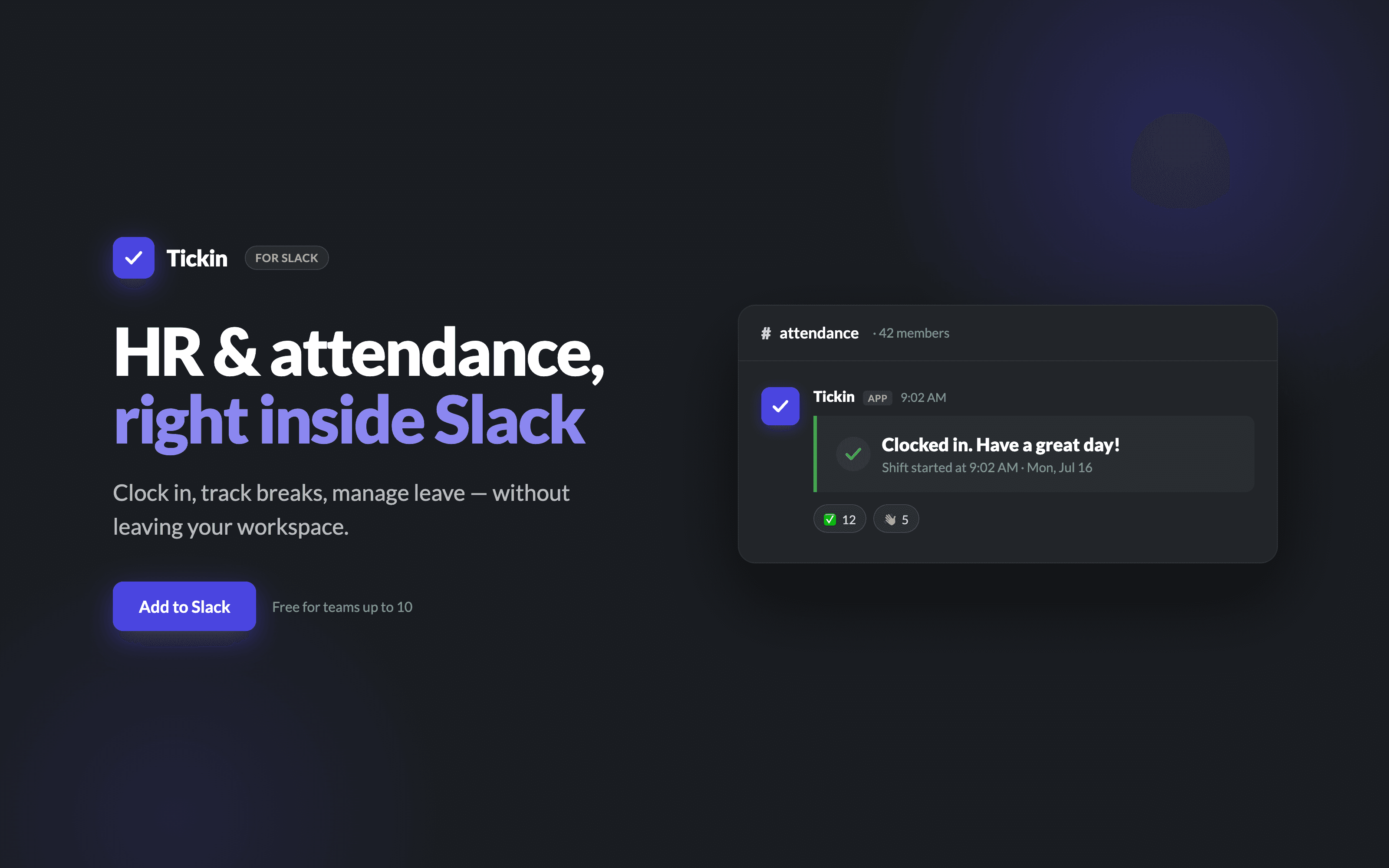
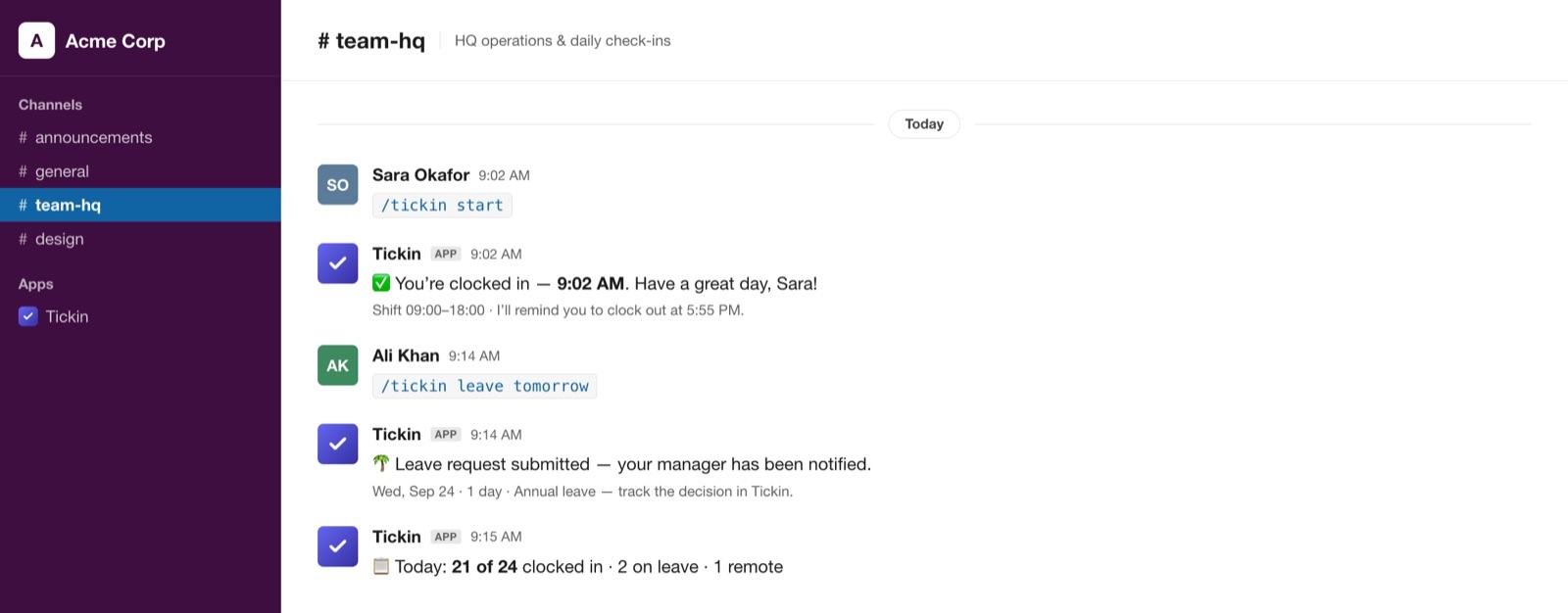
Tickin adds a single /tickin command to your workspace so your team clocks in with /tickin start, clocks out with /tickin end, requests leave, and approves it, right inside Slack. Trust-first: it never reads your messages.
 Add to Slack
Free Tickin workspace first, then connect Slack in one click from Settings · Free for up to 10 employees
Work where your team already works
One /tickin command runs attendance, leave, approvals, and reports right inside Slack and Microsoft Teams. It works the same on both, and adapts to each person's role.
Everything about your own day
- Clock In
- Clock Out
- Start Break
- End Break
- Apply Leave
- View Leave Balance
- View Today's Summary
- View Attendance History
- View Schedule
- View Profile
Run your team, approve in place
- Team Dashboard
- Employee Search
- Employee Attendance
- Leave Approval
- Attendance Correction Approval
- Team Attendance Summary
- Team Leave Summary
- Attendance Alerts
The whole workspace, from chat
- Organization Dashboard
- Company Reports
- Workspace Summary
- Employee Directory
- Attendance Analytics
- Scheduled Reports
Managers see everything an employee can, for their team. Admins see everything, for the whole workspace. Permissions are enforced server-side.
How a leave request flows, without leaving chat
The team-lead step is on Growth and Scale. On Free and Starter, an admin approves directly.
- Request leaveEmployee
- Lead approvalTeam Lead
- Admin approvalAdministrator
- ApprovedSynced to Tickin
Work from Slack and Microsoft Teams
Clock-ins and employee self-service work in Slack on every plan. Interactive leave and correction approvals, attendance alerts, and scheduled reports come with the Chat Command Center. The team-lead role, its team dashboard, and two-step approvals (team lead, then admin) are on Growth and Scale; on Free and Starter an admin approves directly. Microsoft Teams is available on the Scale plan.
- Slack integration
- Microsoft Teams (Scale)
- Interactive approvals
- Attendance alerts
- Scheduled reports
- Employee self-service
- Team dashboards
Your whole workday, in Slack
Clock in & out
Start and end the workday with /tickin start and /tickin end, from any channel.
Breaks
Pause and resume the clock with /tickin break — paid or unpaid, your rules.
Leave requests
Request time off in a short Slack modal; balances update automatically.
Approvals
Leave and attendance corrections get Approve / Reject buttons in Slack. On Growth and Scale a team lead reviews first, then an admin.
Attendance
/tickin team today shows who's in, on break, late, or off — no dashboard needed.
Overtime
When someone works past their hours, Tickin DMs them to confirm or cap overtime.
Notifications
Late-arrival and early-departure alerts reach managers in the channel they pick.
Daily summaries
An automated daily workforce summary (WFH + leave) posts to Slack each day.
Team reminders
Gentle, per-person nudges — everyone controls what reaches them.
Install in a few minutes
- 1Create a free Tickin workspace (no credit card).
- 2Log in to your Tickin admin account.
- 3Open Settings → Integrations.
- 4Select Slack.
- 5Click Add to Slack.
- 6Approve the requested permissions in Slack.
- 7Choose your notification, leave, and holiday channels.
- 8Run /tickin start to test the connection.
Every permission, explained
Tickin requests only the scopes it needs to run attendance in Slack. Here is each one, what it's used for, and what Tickin never does with it.
commands- Why
- Powers the /tickin slash command.
- Used for
- Lets your team clock in with /tickin start, clock out with /tickin end, take breaks, request leave, and check status from Slack.
- Never
- It cannot read any other message you type.
chat:write- Why
- Send messages as the Tickin bot.
- Used for
- Clock-in confirmations, leave approval buttons, and DMs to the person who ran a command.
- Never
- It never posts as you, or into channels you didn't choose.
chat:write.public- Why
- Post to a public channel without being manually invited.
- Used for
- Deliver the daily workforce summary and alerts to the channel an admin selects.
- Never
- It does not read those channels.
users:read- Why
- Read basic Slack profile info (name, ID).
- Used for
- Match a Slack user to their Tickin account and show their name in approvals.
- Never
- It does not read your messages or files.
users:read.email- Why
- Read the email on a Slack profile.
- Used for
- Match a Slack user to the correct Tickin employee — email is the reliable key.
- Never
- Emails are used only for matching; never sold or shared.
channels:read- Why
- List public channels.
- Used for
- Let an admin choose which channel receives notifications and reports.
- Never
- It does not read channel history or messages.
How the integration is secured
Encrypted tokens
Bot tokens are encrypted at rest with AES-256-GCM (authenticated encryption).
OAuth CSRF protection
The install flow uses an HMAC-signed state parameter with a 10-minute expiry.
Request signature verification
Every inbound Slack request (commands, buttons, events) is verified with your Slack signing secret (HMAC-SHA256).
Replay protection
Requests older than five minutes are rejected.
Tenant isolation
Each Slack workspace maps to exactly one Tickin workspace, enforced by unique database constraints. One workspace can never read another's data.
Disconnect & reconnect
Removing Tickin stops all messages immediately and marks the workspace disconnected. Reconnecting re-authorizes and restores your channel choices.
More in our security overview.
What Tickin never does
- Read your private conversations or DMs.
- Monitor or store the messages your team sends.
- Track activity unrelated to attendance and leave.
- Store Slack data it doesn't need — only the workspace ID, the encrypted bot token, and the Slack-user-to-Tickin-account mapping.
Common questions
- How do I install Tickin for Slack?
- Create a free Tickin workspace, then open Settings → Integrations → Slack and click Add to Slack. Approve the permissions, choose your notification channels, and you're done.
- Can I disconnect Slack?
- Yes, anytime — from Settings → Integrations, or by removing Tickin in your Slack app settings. Disconnecting stops all messages and notifications immediately.
- Can I reconnect later?
- Yes. Reconnecting re-authorizes the app and restores your saved channel choices. No Tickin data is lost in between.
- Does Tickin read my conversations?
- No. Tickin only receives the /tickin commands and button clicks your team sends it. It never reads channel history, DMs, or unrelated messages.
- Which permissions are required?
- Six scopes: commands, chat:write, chat:write.public, users:read, users:read.email, and channels:read. Each is explained in the Permissions section above.
- Can multiple workspaces connect?
- Each Tickin workspace connects to one Slack workspace. Different companies each connect their own — workspaces are fully isolated from one another.
- What happens after I uninstall?
- Notifications stop immediately, the integration is marked disconnected, and your Tickin data (attendance, leave, payroll) is untouched. You can reconnect at any time.
- Can I use Microsoft Teams instead?
- Yes. Tickin runs the same experience in Microsoft Teams, command for command.
- Do I need Slack to use Tickin?
- No. Tickin also works from the browser and a desktop app. Slack is an optional integration, not a requirement.
Troubleshooting
- OAuth error / “invalid or expired” link
- The install link is signed and expires after 10 minutes. Start again from Settings → Integrations → Slack → Add to Slack.
- Permission denied (you clicked Cancel)
- You're returned to Integrations with no changes. Click Add to Slack again and approve the scopes to continue.
- Workspace already connected elsewhere
- A Slack workspace can belong to one Tickin workspace at a time. Reinstalling from the new workspace transfers it automatically.
- Missing channels in the picker
- Tickin lists public channels. Create or unarchive the channel, then click Save channels again.
- Slash commands not responding
- Usually a signing-secret or connection issue. Reconnect from Settings → Integrations; if it persists, contact support.
- Notifications not arriving
- Confirm Slack is your active chat integration and a default/leave channel is set, and that the bot is in (or can post to) that channel.
- Reinstall
- Click Add to Slack again — Tickin updates the existing connection in place; it never creates a duplicate.
- Reconnect after removal
- If Tickin was removed in Slack, the admin sees a “Reconnect” prompt in Settings → Integrations. One click restores it.
- Token revoked
- Handled automatically: the integration is marked disconnected and stops sending. Reconnect to issue a fresh token.
Still stuck? Contact support or read the full user guide.
Going deeper: Slack time tracking walks through a full worked day, clocking in from Slack covers breaks and corrections, the Slack attendance bot explains approvals and reports, and Slack leave management covers requests and balances.
Bring attendance into Slack
Create your free workspace, connect Slack in one click, and your team clocks in from the channel they already use.