A time tracker for teams that people will actually use
Tickin is a time tracker that records hours the moment your team clocks in, so you get accurate totals without chasing timesheets or spreadsheets. It is free for up to 10 employees.
Clock in from wherever your team already works
People clock in and out from Slack, the browser, or the optional desktop app, whichever fits their day. That means no separate tool to remember and no context switching. Everyone stays in the flow while their hours are captured accurately.
Automatic hours, zero manual timesheets
Sessions, hours, and daily breakdowns are tracked for you as people work. There are no forms to fill in at the end of the week and no rounding by memory. You get clean, ready-to-review totals without the timesheet busywork.
A live dashboard of who is working
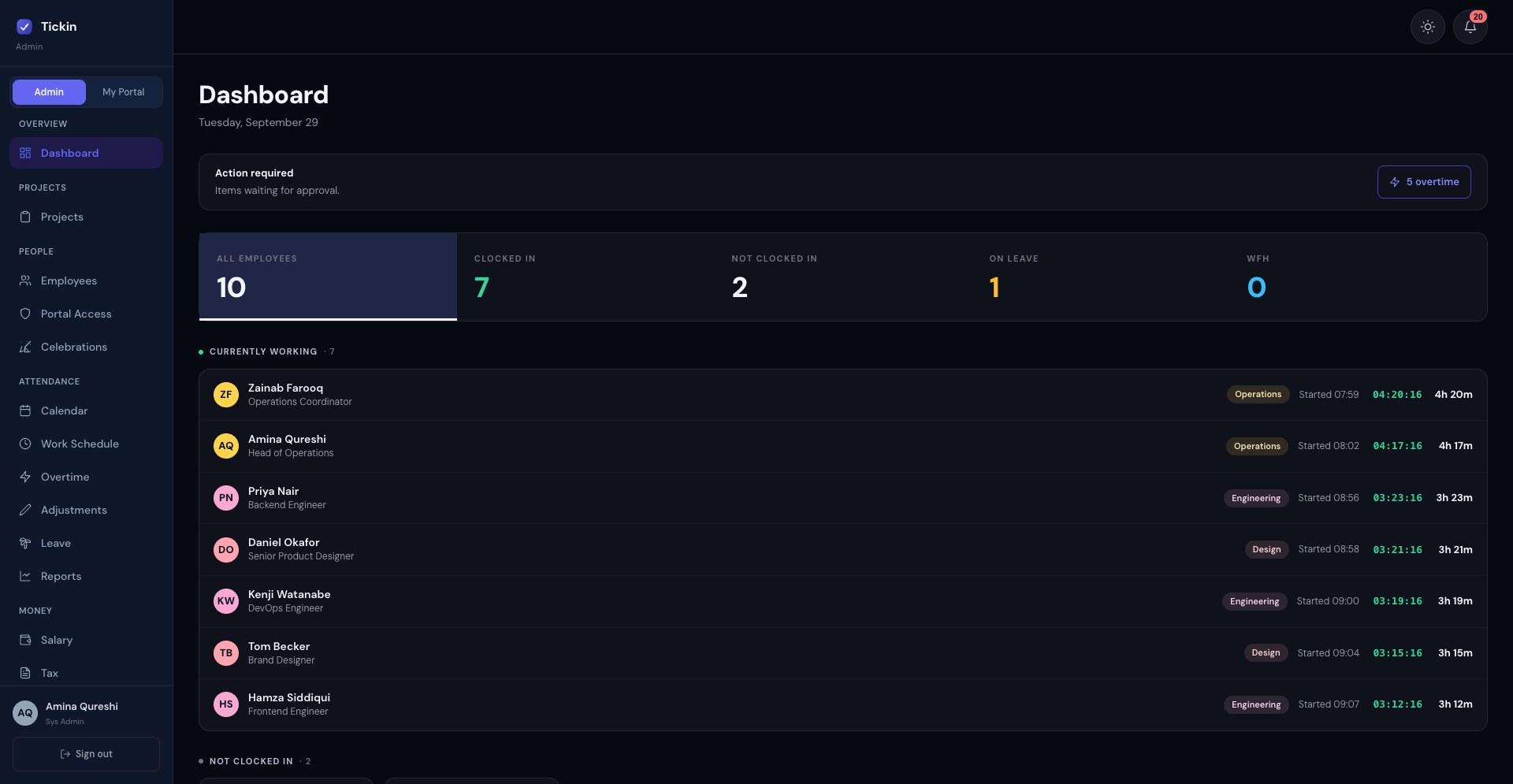
The time tracking dashboard shows the whole team at a glance: who is clocked in, who has not started yet, and who is on leave or working from home. Each person's row shows when they started, a live timer and their hours so far, and anything waiting for a decision, like overtime to approve, sits at the top. It is the same view whether you manage five people or fifty.
Breaks and overtime handled the right way
Breaks are tracked and auto-deducted from worked hours, so totals reflect real time on task. On the Growth and Scale plans, overtime detection asks people at their own target hours whether to cap the day there or count the extra time as overtime — in Slack, on the web, or in Microsoft Teams on the Scale plan. That keeps hours honest without a manager policing every entry.
Reminders when someone forgets to clock out
On every plan, when someone reaches their own target hours and is still clocked in, Tickin reminds them in a Slack DM, on the web, and in Microsoft Teams on the Scale plan: "You've reached your 9h for today" (with their own target hours). On Free and Starter the buttons are Clock out and Continue working; on Growth and Scale they are Cap at target hours, Count as OT and Continue working. With no reply, it asks "Still clocked in?" after 2 hours and again 2 hours later. An hour after the third, Tickin clocks the person out, tells them to clock in again if they're still working, and notifies admins. The session is flagged "Forgotten clock-out" and counts their target hours. On Growth and Scale, extra time after an automatic clock-out becomes a pending overtime request — never approved automatically. If the times are wrong, the employee can request an adjustment, or an admin can correct it (through an adjustment, including on someone's behalf).
Built for distributed and remote teams
Tickin works for teams spread across locations, with a timezone set per workspace so hours land in the right day. Idle detection on the desktop app marks inactivity so you do not overcount time. The result is time data you can trust, wherever people work.
Optional productivity monitoring
If you need more than hours, the Desktop App add-on can also record application and website time by category, with a day-by-day breakdown, week-over-week trends and CSV export. It is off until an admin switches it on, so buying the add-on does not start it. Breaks and idle time are never captured, admins are never tracked, and on macOS no screenshot is taken unless the employee grants the permission themselves.
Learn more
- Time tracking6 Best Free Time Tracking Tools for Small Teams (2026)
- Time trackingTime Doctor Alternatives Without Screenshot Monitoring
- Time trackingTime Tracking for Small Businesses: A No-Nonsense Guide
- Time trackingTimesheet Software and Apps for Small Businesses: What to Look For
- Time trackingDo Breaks Count as Hours Worked? How Break Tracking Should Work
- SlackSlack Time Tracking: How to Clock In Without Another App to Open
- Time trackingProject Time Tracking: Track Hours by Project and Task
- OvertimeOvertime Tracking: How to Track Overtime Fairly Without Guesswork
- Time trackingEmployee Forgot to Clock Out? What to Do, and How to Stop It Happening
Frequently asked questions
- Is Tickin's time tracker free?
- Yes, for teams of up to 10 employees. The Free plan includes time tracking, attendance and leave, with clock-in from Slack or the browser. Larger teams move to a paid plan, and some features, such as overtime detection, are on higher plans.
- Is there a time tracker app for phones?
- There is no separate iOS or Android app. On a phone, people clock in from the Slack app, or the Microsoft Teams app on the Scale plan, or in the mobile browser. The optional Desktop App add-on, available on paid plans, runs on macOS, Windows and Linux.
- What if someone forgets to clock out?
- Tickin reminds them. At their own target hours a reminder arrives in a Slack DM and on the web (and in Microsoft Teams on the Scale plan), then again after 2 hours and 2 hours after that. Pressing Continue working or starting a break restarts the reminders. An hour after the third reminder with no reply, they are clocked out automatically and told to clock in again if they're still working, and admins are notified. The session is flagged "Forgotten clock-out" and counts their target hours; on Growth and Scale, extra time becomes a pending overtime request, never approved automatically. Corrections go through an adjustment request from the employee, or an admin can correct it (through an adjustment, including on someone's behalf).
- What does the time tracking dashboard show?
- Who is clocked in, who has not clocked in, who is on leave or working from home, when each person started, a live timer and their hours so far, plus anything waiting for approval, such as overtime.
- How do employees clock in with Tickin?
- They can clock in and out from Slack with /tickin start and /tickin end, directly in the browser, or through the optional desktop app. Each option records the same session data, so people can use whichever is most convenient.
- Do we still need to fill out timesheets?
- No. Sessions, hours, and daily breakdowns are tracked automatically as your team works, so there are no manual timesheets to complete or reconcile at the end of the week.
- How are breaks counted?
- Breaks are tracked and automatically deducted from worked hours. This means the totals you see reflect actual time worked, without anyone having to subtract break time by hand.
- How does overtime work?
- When someone passes the configured daily threshold, Tickin sends a prompt in Slack (or Microsoft Teams on the Scale plan) offering to continue as overtime or cap the day at the threshold (overtime detection is on the Growth plan). The choice is made in the moment, so overtime is intentional rather than accidental.
- Does Tickin handle remote teams in different timezones?
- Yes. Tickin is built for distributed and remote teams, with a timezone set per workspace so hours are recorded against the correct day. Idle detection on the desktop app also helps keep hours accurate by marking inactivity.
- Does Tickin monitor activity or take screenshots?
- Only if you turn it on. Monitoring is a separate module that needs the Desktop App add-on and an admin to switch it on; it is off by default. Left off, the only activity signal is optional idle detection on the Desktop App.
Solutions for your team
How Tickin compares
- Slack Time Tracking vs a Standalone Time Tracker
- Tickin vs Clockify: a Clockify alternative with HR built in
- Tickin vs Connecteam: a Connecteam alternative for Slack-based teams
- Tickin vs Gusto: attendance and payslips in Slack, or full-service US payroll
- Tickin vs Hubstaff: a Hubstaff alternative without surveillance
- Tickin vs Jibble: a Jibble alternative with HR and payroll
- Tickin vs QuickBooks Payroll: Slack-first attendance and payslips, or payroll inside your books
- Tickin vs Time Doctor: a Time Doctor alternative without the screenshots