How to Track Time in Microsoft Teams
Teams has no time clock of its own. How to track hours inside Microsoft Teams with a bot: clocking in, breaks, checking your hours, team views, reports and timesheets.
Microsoft Teams is where many teams spend their whole working day, but it has no time clock or timesheet of its own. To track time inside Teams, you add an app whose bot records when people start, pause and stop, and keeps the timesheet for you.
We have already covered clocking in and out from Teams. This guide picks up from there: how the hours add up through a day and a week, how people and managers check them without leaving Teams, and how the timesheet gets to payroll.
What tracking time in Teams looks like
With Tickin, people send tickin and a command to the Tickin app (no slash, no @):
| Command | What it does |
|---|---|
tickin start |
Clock in. Starts a time entry and announces it in the attendance channel. |
tickin break |
Start a break; run it again to resume. Break time is not counted as worked. |
tickin end |
Clock out. Closes any open break and posts the net worked time. |
tickin today |
Your summary for today. |
tickin attendance |
A private summary of today: clock-in time, hours worked and total break time. |
Those five cover a working day. Everything else in this guide is about what happens to the hours afterwards.
A day of tracked time
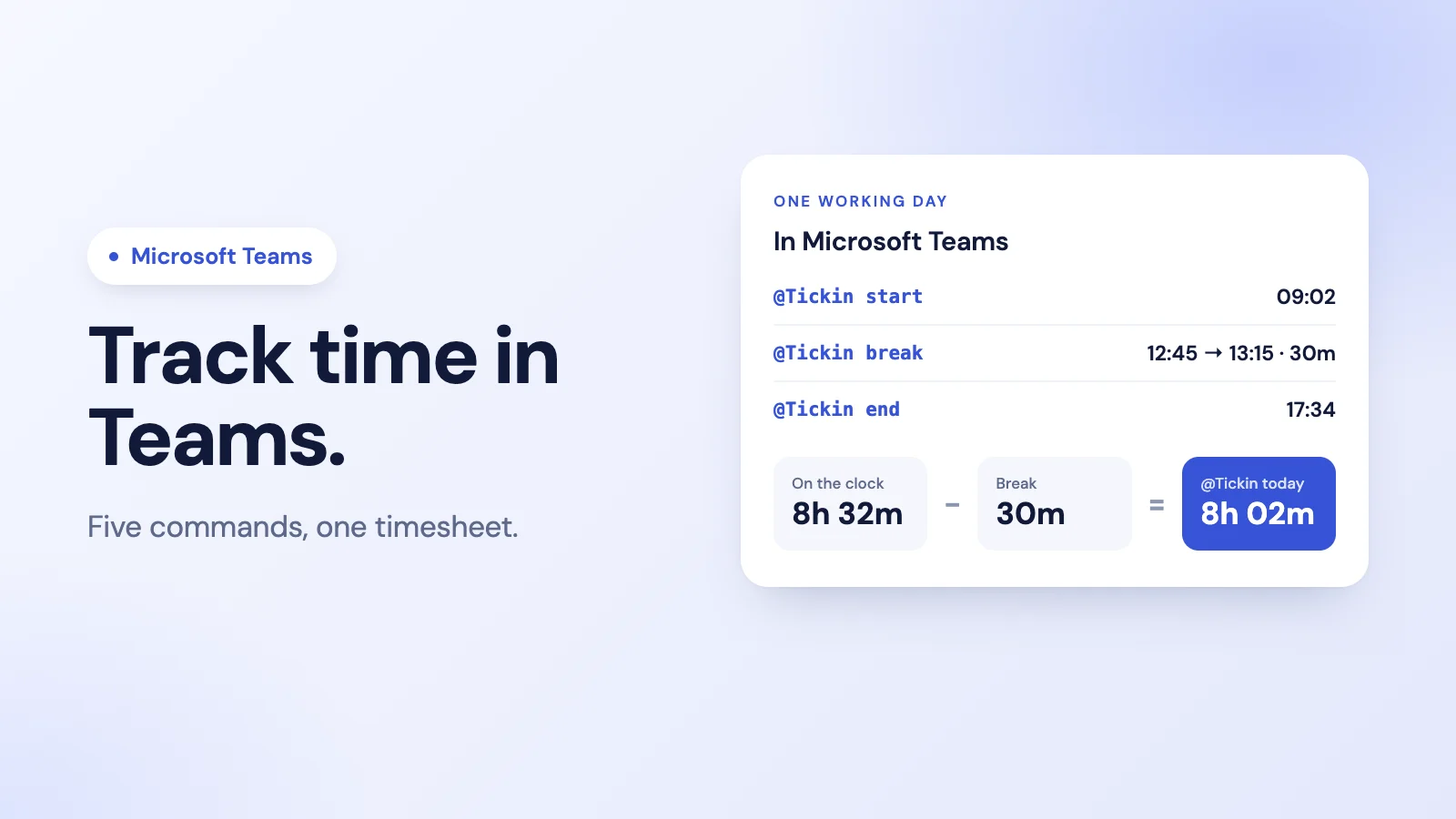
Here is one day for one person:
- 09:02
tickin start. The entry begins. - 12:45
tickin breakfor lunch, thentickin breakagain at 13:15 to resume. - 17:34
tickin end. The day closes: 8 hours 32 minutes on the clock, minus a 30-minute break, is 8h 02m worked. tickin todayshows the same figure, privately, at any point in the day.
Times are recorded as they happened. Tickin does not round clock times, so 09:02 stays 09:02. If you want to see the arithmetic behind a day like this, see how to calculate hours worked.
Checking your own hours
tickin todayfor today so far.tickin reportfor your attendance figures over a period.tickin insightsfor trends over time.
Replies are private to the person who asked, so nobody has to share their hours with a channel to check them.
Seeing the team's time, for managers
tickin teamshows who is working, late, on a break or on leave right now.tickin summarygives a one-screen summary of the people you are responsible for.tickin correctionslists pending attendance corrections, with buttons to approve or decline.
An admin can also subscribe a channel to a daily, weekly or monthly report with tickin report subscribe, so the numbers arrive without anyone asking.
From hours to a timesheet
The timesheet builds itself from the clock-ins: each day's entries, breaks deducted, add up into the week and the month. A few things are worth knowing about how that works in Tickin:
- There is no submit-and-approve step for timesheets. Hours are recorded as people clock in and out, and what managers review are the exceptions: corrections and overtime.
- Mistakes are fixed with an adjustment. If the times are wrong, the employee can request an adjustment, or an admin can correct it, including on someone's behalf.
- A forgotten clock-out is handled by reminders and, if needed, an automatic clock-out; see what to do when an employee forgets to clock out.
- Overtime is approved by an admin before it counts toward pay.
- Export is a CSV from the web dashboard, for Excel or your payroll process. On the Growth plan and above, Tickin's own payroll can also use the hours directly.
If you want a lightweight sign-off for the week anyway, our guide to the timesheet approval process shows how to run one alongside.
What you need
- Tickin's Growth plan or above, from $3 per employee a month. Microsoft Teams is on Growth and Scale; Slack is on every plan.
- Tickin connected to your Teams by an admin, who registers the Azure Bot and points it at Tickin. After that, everyone with access can send
tickincommands to the Tickin app. - Your working days and office hours set in Tickin, so lateness and expected hours are measured against the right schedule.
Want to compare with doing this in Slack? See how to track time in Slack. For the whole picture of attendance inside Teams, see Microsoft Teams attendance tracking and Tickin for Microsoft Teams.
Frequently asked questions
Does Microsoft Teams have built-in time tracking?
No. Teams has no time clock or timesheet of its own. You add an app with a bot that records clock-ins, breaks and clock-outs, and keeps the timesheet for you.
How do I see my hours in Microsoft Teams?
With Tickin, message tickin today for today's summary, tickin attendance for today's clock-in, hours and breaks, or tickin report for your figures over a period. The replies are private to you.
Can managers see team timesheets in Teams?
Yes. Managers can use tickin team to see who is working, on a break or on leave, and tickin summary for the people they are responsible for. An admin can subscribe a channel to a daily, weekly or monthly report.
Can I export Teams timesheets to Excel?
Yes. In Tickin, attendance can be exported as CSV from the web dashboard on the Growth plan and above, and Microsoft Teams itself is on the Growth and Scale plans, so a Teams workspace always has export.
Which Tickin plan includes Microsoft Teams?
The Growth plan, at $3 per employee a month, and Scale, which includes everything in Growth. Slack is on every plan, including Free.
The takeaway
Tracking time in Microsoft Teams comes down to a bot and five commands: start, break, end, and two ways to check the day. The value is what happens next: hours that add up on their own, private summaries for each person, team views and scheduled reports for managers, and a timesheet ready to export without anyone filling one in.